Compare commits
8 Commits
| Author | SHA1 | Date | |
|---|---|---|---|

|
d9ada4c26c | ||
|
|
535e5d02f9 | ||
|
|
38f40bf03d | ||
|
|
7cc491536b | ||
|
|
66ccc35840 | ||
|
|
812dc61b33 | ||
|
|
dbbdc14c7c | ||
|
|
cf73f981b7 |
@@ -68,26 +68,19 @@ ForEachMacros:
|
||||
- BOOST_FOREACH
|
||||
IncludeBlocks: Regroup
|
||||
IncludeCategories:
|
||||
# C standard library headers
|
||||
#
|
||||
# https://en.cppreference.com/w/cpp/header:
|
||||
# * C compatibility headers
|
||||
# * Special C compatibility headers
|
||||
# * Empty C headers
|
||||
# * Meaningless C headers
|
||||
# * Unsupported C headers
|
||||
- Regex: '^<(assert\.h|ctype\.h|errno\.h|fenv\.h|float\.h|inttypes\.h|limits\.h|locale\.h|math\.h|setjmp\.h|signal\.h|stdarg\.h|stddef\.h|stdint\.h|stdio\.h|stdlib\.h|string\.h|time\.h|uchar\.h|wchar\.h|wctype\.h|stdatomic\.h|ccomplex|complex\.h|ctgmath|tgmath\.h|ciso646|cstdalign|cstdbool|iso646\.h|stdalign\.h|stdbool\.h|stdatomic\.h|stdnoreturn\.h|threads\.h)>'
|
||||
Priority: 1
|
||||
# C++ standard library headers (lowercase and underscores with no .h suffix)
|
||||
- Regex: '^<[a-z_]+>'
|
||||
Priority: 2
|
||||
# Other library headers (angle brackets)
|
||||
- Regex: '^<.*'
|
||||
Priority: 3
|
||||
# Project headers (double quotes)
|
||||
- Regex: '^".*'
|
||||
Priority: 4
|
||||
IncludeIsMainRegex: '(Test|_test)?$'
|
||||
- Regex: '^<ext/.*\.h>'
|
||||
Priority: 2
|
||||
SortPriority: 0
|
||||
- Regex: '^<.*\.h>'
|
||||
Priority: 1
|
||||
SortPriority: 0
|
||||
- Regex: '^<.*'
|
||||
Priority: 2
|
||||
SortPriority: 0
|
||||
- Regex: '.*'
|
||||
Priority: 3
|
||||
SortPriority: 0
|
||||
IncludeIsMainRegex: '([-_](test|unittest))?$'
|
||||
IncludeIsMainSourceRegex: ''
|
||||
IndentCaseLabels: true
|
||||
IndentGotoLabels: true
|
||||
@@ -143,7 +136,7 @@ RawStringFormats:
|
||||
CanonicalDelimiter: ''
|
||||
BasedOnStyle: google
|
||||
ReflowComments: true
|
||||
SortIncludes: true
|
||||
SortIncludes: false
|
||||
SortUsingDeclarations: true
|
||||
SpaceAfterCStyleCast: false
|
||||
SpaceAfterLogicalNot: false
|
||||
|
||||
3
.gitattributes
vendored
@@ -35,6 +35,3 @@
|
||||
*.so binary
|
||||
*.dll binary
|
||||
*.webp binary
|
||||
|
||||
# autogenerated constrained solve pnp code
|
||||
photon-targeting/src/main/native/cpp/photon/constrained_solvepnp/generate/**/* linguist-generated
|
||||
|
||||
4
.github/CODEOWNERS
vendored
@@ -1,6 +1,2 @@
|
||||
# These owners will be the default owners for everything in the repo.
|
||||
* @PhotonVision/program-devs
|
||||
docs/* @PhotonVision/doc-maintainers
|
||||
photonlib-java-examples/* @PhotonVision/doc-maintainers
|
||||
photonlib-cpp-examples/* @PhotonVision/doc-maintainers
|
||||
photonlib-python-examples/* @PhotonVision/doc-maintainers
|
||||
|
||||
1
.github/ISSUE_TEMPLATE/bug_report.md
vendored
@@ -22,7 +22,6 @@ If applicable, add screenshots to help explain your problem. Additionally, provi
|
||||
|
||||
**Platform:**
|
||||
- Hardware Platform (ex. Raspberry Pi 4, Windows x64):
|
||||
- How is it powered? (ex. Zinc-V, Pololu Buck Converter, Battery Bank):
|
||||
- Network Configuration (Connection between the Radio and any devices in between, such as a Network Switch):
|
||||
- PhotonVision Version:
|
||||
- Browser (with Version) (Chrome, Edge, Firefox, etc.):
|
||||
|
||||
17
.github/ISSUE_TEMPLATE/docs_issue.md
vendored
@@ -1,17 +0,0 @@
|
||||
---
|
||||
name: Documentation Request
|
||||
about: Something needs to be documented/updated in the documentation
|
||||
title: ''
|
||||
labels: documentation
|
||||
assignees: ''
|
||||
|
||||
---
|
||||
|
||||
**Are you requesting documentation for a new feature, or updated documentation for an old feature?**
|
||||
Put the feature you are requesting documentation for here, along with whether the documentation is stale and needs to be updated, or whether the documentation does not exist, and needs to be created.
|
||||
|
||||
**Where is it?**
|
||||
Put the location of the documentation that needs to be updated here. If you're requesting documenation for a new feature, put where you think it should go.
|
||||
|
||||
**Additional context**
|
||||
Add any other context or screenshots about the feature request here.
|
||||
15
.github/labeler.yml
vendored
@@ -1,15 +0,0 @@
|
||||
"backend":
|
||||
- changed-files:
|
||||
- any-glob-to-any-file: [photon-core/**, photon-server/**]
|
||||
"documentation":
|
||||
- changed-files:
|
||||
- any-glob-to-any-file: [docs/**, photon-docs/**]
|
||||
"frontend":
|
||||
- changed-files:
|
||||
- any-glob-to-any-file: photon-client/**
|
||||
"photonlib":
|
||||
- changed-files:
|
||||
- any-glob-to-any-file: photon-lib*/**
|
||||
"website":
|
||||
- changed-files:
|
||||
- any-glob-to-any-file: website/**
|
||||
19
.github/pull_request_template.md
vendored
@@ -1,19 +0,0 @@
|
||||
## Description
|
||||
|
||||
<!-- What changed? Why? (the code + comments should speak for itself on the "how") -->
|
||||
|
||||
<!-- Fun screenshots or a cool video or something are super helpful as well. If this touches platform-specific behavior, this is where test evidence should be collected. -->
|
||||
|
||||
<!-- Any issues this pull request closes or pull requests this supersedes should be linked with `Closes #issuenumber`. -->
|
||||
|
||||
## Meta
|
||||
|
||||
Merge checklist:
|
||||
- [ ] Pull Request title is [short, imperative summary](https://cbea.ms/git-commit/) of proposed changes
|
||||
- [ ] The description documents the _what_ and _why_
|
||||
- [ ] This PR has been [linted](https://docs.photonvision.org/en/latest/docs/contributing/linting.html).
|
||||
- [ ] If this PR changes behavior or adds a feature, user documentation is updated
|
||||
- [ ] If this PR touches photon-serde, all messages have been regenerated and hashes have not changed unexpectedly
|
||||
- [ ] If this PR touches configuration, this is backwards compatible with settings back to v2025.3.2
|
||||
- [ ] If this PR touches pipeline settings or anything related to data exchange, the frontend typing is updated
|
||||
- [ ] If this PR addresses a bug, a regression test for it is added
|
||||
588
.github/workflows/build.yml
vendored
@@ -1,126 +1,26 @@
|
||||
name: Build
|
||||
|
||||
on:
|
||||
# Run on pushes to main and pushed tags, and on pull requests against main, but ignore the docs folder
|
||||
# Run on pushes to master and pushed tags, and on pull requests against master, but ignore the docs folder
|
||||
push:
|
||||
branches: [ master ]
|
||||
tags:
|
||||
- 'v*'
|
||||
paths:
|
||||
- '**'
|
||||
- '!docs/**'
|
||||
- '.github/**'
|
||||
pull_request:
|
||||
|
||||
concurrency:
|
||||
group: ${{ github.workflow }}-${{ github.head_ref || github.ref }}
|
||||
cancel-in-progress: true
|
||||
|
||||
env:
|
||||
IMAGE_VERSION: v2026.0.4
|
||||
branches: [ master ]
|
||||
paths:
|
||||
- '**'
|
||||
- '!docs/**'
|
||||
- '.github/**'
|
||||
|
||||
jobs:
|
||||
|
||||
validation:
|
||||
name: "Validation"
|
||||
runs-on: ubuntu-latest
|
||||
steps:
|
||||
- uses: actions/checkout@v4
|
||||
- uses: gradle/actions/wrapper-validation@v4
|
||||
build-examples:
|
||||
|
||||
strategy:
|
||||
fail-fast: false
|
||||
matrix:
|
||||
include:
|
||||
- os: windows-2022
|
||||
architecture: x64
|
||||
- os: macos-14
|
||||
architecture: aarch64
|
||||
- os: ubuntu-22.04
|
||||
|
||||
name: "Photonlib - Build Examples - ${{ matrix.os }}"
|
||||
runs-on: ${{ matrix.os }}
|
||||
needs: [validation]
|
||||
|
||||
steps:
|
||||
- name: Checkout code
|
||||
uses: actions/checkout@v4
|
||||
with:
|
||||
fetch-depth: 0
|
||||
- name: Fetch tags
|
||||
run: git fetch --tags --force
|
||||
- name: Install Java 17
|
||||
uses: actions/setup-java@v4
|
||||
with:
|
||||
java-version: 17
|
||||
distribution: temurin
|
||||
- name: Install RoboRIO Toolchain
|
||||
run: ./gradlew installRoboRioToolchain
|
||||
# Need to publish to maven local first, so that C++ sim can pick it up
|
||||
- name: Publish photonlib to maven local
|
||||
run: ./gradlew photon-targeting:publishtomavenlocal photon-lib:publishtomavenlocal -x check
|
||||
- name: Build Java examples
|
||||
working-directory: photonlib-java-examples
|
||||
run: ./gradlew build
|
||||
- name: Build C++ examples
|
||||
working-directory: photonlib-cpp-examples
|
||||
run: ./gradlew build
|
||||
build-gradle:
|
||||
name: "Gradle Build"
|
||||
runs-on: ubuntu-22.04
|
||||
needs: [validation]
|
||||
steps:
|
||||
# Checkout code.
|
||||
- name: Checkout code
|
||||
uses: actions/checkout@v4
|
||||
with:
|
||||
fetch-depth: 0
|
||||
- name: Fetch tags
|
||||
run: git fetch --tags --force
|
||||
- name: Install Java 17
|
||||
uses: actions/setup-java@v4
|
||||
with:
|
||||
java-version: 17
|
||||
distribution: temurin
|
||||
- name: Install pnpm
|
||||
uses: pnpm/action-setup@v4
|
||||
with:
|
||||
version: 10
|
||||
- name: Setup Node.js
|
||||
uses: actions/setup-node@v4
|
||||
with:
|
||||
node-version: 22
|
||||
- name: Install mrcal deps
|
||||
run: sudo apt-get update && sudo apt-get install -y libcholmod3 liblapack3 libsuitesparseconfig5
|
||||
- name: Gradle Build
|
||||
run: ./gradlew photon-targeting:build photon-core:build photon-server:build -x check
|
||||
- name: Gradle Tests and Coverage
|
||||
run: ./gradlew test jacocoTestReport --stacktrace
|
||||
build-offline-docs:
|
||||
name: "Build Offline Docs"
|
||||
runs-on: ubuntu-22.04
|
||||
steps:
|
||||
- uses: actions/checkout@v4
|
||||
- uses: actions/setup-python@v5
|
||||
with:
|
||||
python-version: '3.11'
|
||||
- name: Install graphviz
|
||||
run: |
|
||||
sudo apt-get update
|
||||
sudo apt-get -y install graphviz
|
||||
- name: Install dependencies
|
||||
working-directory: docs
|
||||
run: |
|
||||
python -m pip install --upgrade pip
|
||||
pip install sphinx sphinx_rtd_theme sphinx-tabs sphinxext-opengraph doc8
|
||||
pip install -r requirements.txt
|
||||
- name: Build the docs
|
||||
working-directory: docs
|
||||
run: |
|
||||
make html
|
||||
- uses: actions/upload-artifact@v4
|
||||
with:
|
||||
name: built-docs
|
||||
path: docs/build/html
|
||||
|
||||
build-photonlib-vendorjson:
|
||||
name: "Build Vendor JSON"
|
||||
runs-on: ubuntu-22.04
|
||||
needs: [validation]
|
||||
steps:
|
||||
- uses: actions/checkout@v4
|
||||
with:
|
||||
@@ -137,6 +37,7 @@ jobs:
|
||||
|
||||
# Generate the JSON and give it the ""standard""" name maven gives it
|
||||
- run: |
|
||||
chmod +x gradlew
|
||||
./gradlew photon-lib:generateVendorJson
|
||||
export VERSION=$(git describe --tags --match=v*)
|
||||
mv photon-lib/build/generated/vendordeps/photonlib.json photon-lib/build/generated/vendordeps/photonlib-$(git describe --tags --match=v*).json
|
||||
@@ -147,458 +48,17 @@ jobs:
|
||||
name: photonlib-vendor-json
|
||||
path: photon-lib/build/generated/vendordeps/photonlib-*.json
|
||||
|
||||
build-photonlib-host:
|
||||
env:
|
||||
MACOSX_DEPLOYMENT_TARGET: 13
|
||||
strategy:
|
||||
fail-fast: false
|
||||
matrix:
|
||||
include:
|
||||
- os: windows-2022
|
||||
artifact-name: Win64
|
||||
architecture: x64
|
||||
- os: macos-14
|
||||
artifact-name: macOS
|
||||
architecture: aarch64
|
||||
- os: ubuntu-22.04
|
||||
artifact-name: Linux
|
||||
|
||||
name: "Photonlib - Build Host - ${{ matrix.artifact-name }}"
|
||||
runs-on: ${{ matrix.os }}
|
||||
needs: [validation]
|
||||
steps:
|
||||
- uses: actions/checkout@v4
|
||||
with:
|
||||
fetch-depth: 0
|
||||
- name: Install Java 17
|
||||
uses: actions/setup-java@v4
|
||||
with:
|
||||
java-version: 17
|
||||
distribution: temurin
|
||||
architecture: ${{ matrix.architecture }}
|
||||
- run: git fetch --tags --force
|
||||
- run: ./gradlew photon-targeting:build photon-lib:build
|
||||
name: Build with Gradle
|
||||
- run: ./gradlew photon-lib:publish photon-targeting:publish
|
||||
name: Publish
|
||||
env:
|
||||
ARTIFACTORY_API_KEY: ${{ secrets.ARTIFACTORY_API_KEY }}
|
||||
if: github.event_name == 'push' && github.repository_owner == 'photonvision'
|
||||
# Copy artifacts to build/outputs/maven
|
||||
- run: ./gradlew photon-lib:publish photon-targeting:publish -PcopyOfflineArtifacts
|
||||
- uses: actions/upload-artifact@v4
|
||||
with:
|
||||
name: maven-${{ matrix.artifact-name }}
|
||||
path: build/outputs
|
||||
|
||||
build-photonlib-docker:
|
||||
strategy:
|
||||
fail-fast: false
|
||||
matrix:
|
||||
include:
|
||||
- container: wpilib/roborio-cross-ubuntu:2025-24.04
|
||||
artifact-name: Athena
|
||||
build-options: "-Ponlylinuxathena"
|
||||
- container: wpilib/raspbian-cross-ubuntu:bullseye-22.04
|
||||
artifact-name: Raspbian
|
||||
build-options: "-Ponlylinuxarm32"
|
||||
- container: wpilib/aarch64-cross-ubuntu:bullseye-22.04
|
||||
artifact-name: Aarch64
|
||||
build-options: "-Ponlylinuxarm64"
|
||||
|
||||
runs-on: ubuntu-22.04
|
||||
container: ${{ matrix.container }}
|
||||
name: "Photonlib - Build Docker - ${{ matrix.artifact-name }}"
|
||||
needs: [validation]
|
||||
steps:
|
||||
- uses: actions/checkout@v4
|
||||
with:
|
||||
fetch-depth: 0
|
||||
- name: Config Git
|
||||
run: |
|
||||
git config --global --add safe.directory /__w/photonvision/photonvision
|
||||
- name: Build PhotonLib
|
||||
# We don't need to run tests, since we specify only non-native platforms
|
||||
run: ./gradlew photon-targeting:build photon-lib:build ${{ matrix.build-options }} -x test
|
||||
- name: Publish
|
||||
run: ./gradlew photon-lib:publish photon-targeting:publish ${{ matrix.build-options }}
|
||||
env:
|
||||
ARTIFACTORY_API_KEY: ${{ secrets.ARTIFACTORY_API_KEY }}
|
||||
if: github.event_name == 'push' && github.repository_owner == 'photonvision'
|
||||
# Copy artifacts to build/outputs/maven
|
||||
- run: ./gradlew photon-lib:publish photon-targeting:publish -PcopyOfflineArtifacts ${{ matrix.build-options }}
|
||||
- uses: actions/upload-artifact@v4
|
||||
with:
|
||||
name: maven-${{ matrix.artifact-name }}
|
||||
path: build/outputs
|
||||
|
||||
combine:
|
||||
name: Combine
|
||||
needs: [build-photonlib-docker, build-photonlib-host]
|
||||
dispatch:
|
||||
name: dispatch
|
||||
needs: [build-photonlib-vendorjson]
|
||||
runs-on: ubuntu-22.04
|
||||
steps:
|
||||
- uses: actions/checkout@v4
|
||||
- uses: peter-evans/repository-dispatch@v3
|
||||
# if: |
|
||||
# github.repository == 'mcm001/photonvision' &&
|
||||
# startsWith(github.ref, 'refs/tags/v')
|
||||
with:
|
||||
fetch-depth: 0
|
||||
- run: git fetch --tags --force
|
||||
# download all maven-* artifacts to outputs/
|
||||
- uses: actions/download-artifact@v4
|
||||
with:
|
||||
merge-multiple: true
|
||||
path: output
|
||||
pattern: maven-*
|
||||
- run: find .
|
||||
- run: zip -r photonlib-$(git describe --tags --match=v*).zip .
|
||||
name: ZIP stuff up
|
||||
working-directory: output
|
||||
- run: ls output
|
||||
- uses: actions/upload-artifact@v4
|
||||
with:
|
||||
name: photonlib-offline
|
||||
path: output/*.zip
|
||||
|
||||
build-package:
|
||||
needs: [build-gradle, build-offline-docs]
|
||||
|
||||
strategy:
|
||||
fail-fast: false
|
||||
matrix:
|
||||
include:
|
||||
- os: windows-latest
|
||||
artifact-name: Win64
|
||||
architecture: x64
|
||||
arch-override: winx64
|
||||
- os: macos-latest
|
||||
artifact-name: macOS
|
||||
architecture: x64
|
||||
arch-override: macx64
|
||||
- os: macos-latest
|
||||
artifact-name: macOSArm
|
||||
architecture: x64
|
||||
arch-override: macarm64
|
||||
- os: ubuntu-22.04
|
||||
artifact-name: Linux
|
||||
architecture: x64
|
||||
arch-override: linuxx64
|
||||
- os: ubuntu-22.04
|
||||
artifact-name: LinuxArm64
|
||||
architecture: x64
|
||||
arch-override: linuxarm64
|
||||
|
||||
runs-on: ${{ matrix.os }}
|
||||
name: "Build fat JAR - ${{ matrix.artifact-name }}"
|
||||
|
||||
steps:
|
||||
- uses: actions/checkout@v4
|
||||
with:
|
||||
fetch-depth: 0
|
||||
- name: Install Java 17
|
||||
uses: actions/setup-java@v4
|
||||
with:
|
||||
java-version: 17
|
||||
distribution: temurin
|
||||
architecture: ${{ matrix.architecture }}
|
||||
- name: Install pnpm
|
||||
uses: pnpm/action-setup@v4
|
||||
with:
|
||||
version: 10
|
||||
- name: Setup Node.js
|
||||
uses: actions/setup-node@v4
|
||||
with:
|
||||
node-version: 22
|
||||
cache: pnpm
|
||||
cache-dependency-path: photon-client/pnpm-lock.yaml
|
||||
- name: Install Arm64 Toolchain
|
||||
run: ./gradlew installArm64Toolchain
|
||||
if: ${{ (matrix.artifact-name) == 'LinuxArm64' }}
|
||||
- uses: actions/download-artifact@v4
|
||||
with:
|
||||
name: built-docs
|
||||
path: photon-server/src/main/resources/web/docs
|
||||
- run: ./gradlew photon-targeting:jar photon-server:shadowJar -PArchOverride=${{ matrix.arch-override }}
|
||||
if: ${{ (matrix.arch-override != 'none') }}
|
||||
- run: ./gradlew photon-server:shadowJar
|
||||
if: ${{ (matrix.arch-override == 'none') }}
|
||||
- uses: actions/upload-artifact@v4
|
||||
with:
|
||||
name: jar-${{ matrix.artifact-name }}
|
||||
path: photon-server/build/libs
|
||||
- uses: actions/upload-artifact@v4
|
||||
with:
|
||||
name: photon-targeting_jar-${{ matrix.artifact-name }}
|
||||
path: photon-targeting/build/libs
|
||||
|
||||
run-smoketest-native:
|
||||
needs: [build-package]
|
||||
|
||||
strategy:
|
||||
fail-fast: false
|
||||
matrix:
|
||||
include:
|
||||
- os: ubuntu-22.04
|
||||
artifact-name: jar-Linux
|
||||
extraOpts: -Djdk.lang.Process.launchMechanism=vfork
|
||||
- os: windows-latest
|
||||
artifact-name: jar-Win64
|
||||
extraOpts: ""
|
||||
- os: macos-latest
|
||||
artifact-name: jar-macOS
|
||||
architecture: x64
|
||||
|
||||
runs-on: ${{ matrix.os }}
|
||||
|
||||
steps:
|
||||
- name: Install Java 17
|
||||
uses: actions/setup-java@v4
|
||||
with:
|
||||
java-version: 17
|
||||
distribution: temurin
|
||||
- uses: actions/download-artifact@v4
|
||||
with:
|
||||
name: ${{ matrix.artifact-name }}
|
||||
# On linux, install mrcal packages
|
||||
- run: |
|
||||
sudo apt-get update
|
||||
sudo apt-get install --yes libcholmod3 liblapack3 libsuitesparseconfig5
|
||||
if: ${{ (matrix.os) == 'ubuntu-24.04' }}
|
||||
# and actually run the jar
|
||||
- run: java -jar ${{ matrix.extraOpts }} *.jar --smoketest
|
||||
if: ${{ (matrix.os) != 'windows-latest' }}
|
||||
- run: ls *.jar | %{ Write-Host "Running $($_.Name)"; Start-Process "java" -ArgumentList "-jar `"$($_.FullName)`" --smoketest" -NoNewWindow -Wait; break }
|
||||
if: ${{ (matrix.os) == 'windows-latest' }}
|
||||
|
||||
run-smoketest-chroot:
|
||||
needs: [build-package]
|
||||
|
||||
strategy:
|
||||
fail-fast: false
|
||||
matrix:
|
||||
include:
|
||||
- os: ubuntu-24.04
|
||||
artifact-name: LinuxArm64
|
||||
image_suffix: RaspberryPi
|
||||
image_url: https://github.com/PhotonVision/photon-image-modifier/releases/download/$IMAGE_VERSION/photonvision_raspi.img.xz
|
||||
cpu: cortex-a7
|
||||
image_additional_mb: 0
|
||||
extraOpts: -Djdk.lang.Process.launchMechanism=vfork
|
||||
|
||||
runs-on: ${{ matrix.os }}
|
||||
name: smoketest-${{ matrix.image_suffix }}
|
||||
|
||||
steps:
|
||||
- uses: actions/download-artifact@v4
|
||||
with:
|
||||
name: jar-${{ matrix.artifact-name }}
|
||||
|
||||
- uses: pguyot/arm-runner-action@v2
|
||||
name: Run photon smoketest
|
||||
id: generate_image
|
||||
with:
|
||||
base_image: ${{ matrix.image_url }}
|
||||
image_additional_mb: ${{ matrix.image_additional_mb }}
|
||||
optimize_image: yes
|
||||
cpu: ${{ matrix.cpu }}
|
||||
# We do _not_ wanna copy photon into the image. Bind mount instead
|
||||
bind_mount_repository: true
|
||||
# our image better have java installed already
|
||||
commands: |
|
||||
java -jar ${{ matrix.extraOpts }} *.jar --smoketest
|
||||
|
||||
build-image:
|
||||
needs: [build-package]
|
||||
|
||||
if: ${{ github.event_name != 'pull_request' }}
|
||||
|
||||
strategy:
|
||||
fail-fast: false
|
||||
matrix:
|
||||
include:
|
||||
- os: ubuntu-24.04
|
||||
artifact-name: LinuxArm64
|
||||
image_suffix: RaspberryPi
|
||||
image_url: https://github.com/PhotonVision/photon-image-modifier/releases/download/$IMAGE_VERSION/photonvision_raspi.img.xz
|
||||
cpu: cortex-a7
|
||||
image_additional_mb: 0
|
||||
- os: ubuntu-24.04
|
||||
artifact-name: LinuxArm64
|
||||
image_suffix: limelight2
|
||||
image_url: https://github.com/PhotonVision/photon-image-modifier/releases/download/$IMAGE_VERSION/photonvision_limelight.img.xz
|
||||
cpu: cortex-a7
|
||||
image_additional_mb: 0
|
||||
- os: ubuntu-24.04
|
||||
artifact-name: LinuxArm64
|
||||
image_suffix: limelight3
|
||||
image_url: https://github.com/PhotonVision/photon-image-modifier/releases/download/$IMAGE_VERSION/photonvision_limelight3.img.xz
|
||||
cpu: cortex-a7
|
||||
image_additional_mb: 0
|
||||
- os: ubuntu-24.04
|
||||
artifact-name: LinuxArm64
|
||||
image_suffix: limelight3G
|
||||
image_url: https://github.com/PhotonVision/photon-image-modifier/releases/download/$IMAGE_VERSION/photonvision_limelight3g.img.xz
|
||||
cpu: cortex-a7
|
||||
image_additional_mb: 0
|
||||
- os: ubuntu-24.04
|
||||
artifact-name: LinuxArm64
|
||||
image_suffix: limelight4
|
||||
image_url: https://github.com/PhotonVision/photon-image-modifier/releases/download/$IMAGE_VERSION/photonvision_limelight4.img.xz
|
||||
cpu: cortex-a76
|
||||
image_additional_mb: 0
|
||||
- os: ubuntu-24.04
|
||||
artifact-name: LinuxArm64
|
||||
image_suffix: luma_p1
|
||||
image_url: https://github.com/PhotonVision/photon-image-modifier/releases/download/$IMAGE_VERSION/photonvision_luma_p1.img.xz
|
||||
cpu: cortex-a76
|
||||
image_additional_mb: 0
|
||||
- os: ubuntu-24.04
|
||||
artifact-name: LinuxArm64
|
||||
image_suffix: orangepi5
|
||||
image_url: https://github.com/PhotonVision/photon-image-modifier/releases/download/$IMAGE_VERSION/photonvision_opi5.img.xz
|
||||
cpu: cortex-a8
|
||||
image_additional_mb: 1024
|
||||
- os: ubuntu-24.04
|
||||
artifact-name: LinuxArm64
|
||||
image_suffix: orangepi5b
|
||||
image_url: https://github.com/PhotonVision/photon-image-modifier/releases/download/$IMAGE_VERSION/photonvision_opi5b.img.xz
|
||||
cpu: cortex-a8
|
||||
image_additional_mb: 1024
|
||||
- os: ubuntu-24.04
|
||||
artifact-name: LinuxArm64
|
||||
image_suffix: orangepi5plus
|
||||
image_url: https://github.com/PhotonVision/photon-image-modifier/releases/download/$IMAGE_VERSION/photonvision_opi5plus.img.xz
|
||||
cpu: cortex-a8
|
||||
image_additional_mb: 1024
|
||||
- os: ubuntu-24.04
|
||||
artifact-name: LinuxArm64
|
||||
image_suffix: orangepi5pro
|
||||
image_url: https://github.com/PhotonVision/photon-image-modifier/releases/download/$IMAGE_VERSION/photonvision_opi5pro.img.xz
|
||||
cpu: cortex-a8
|
||||
image_additional_mb: 1024
|
||||
- os: ubuntu-24.04
|
||||
artifact-name: LinuxArm64
|
||||
image_suffix: orangepi5max
|
||||
image_url: https://github.com/PhotonVision/photon-image-modifier/releases/download/$IMAGE_VERSION/photonvision_opi5max.img.xz
|
||||
cpu: cortex-a8
|
||||
image_additional_mb: 1024
|
||||
- os: ubuntu-24.04
|
||||
artifact-name: LinuxArm64
|
||||
image_suffix: rock5c
|
||||
image_url: https://github.com/PhotonVision/photon-image-modifier/releases/download/$IMAGE_VERSION/photonvision_rock5c.img.xz
|
||||
cpu: cortex-a8
|
||||
image_additional_mb: 1024
|
||||
|
||||
runs-on: ${{ matrix.os }}
|
||||
name: "Build image - ${{ matrix.image_suffix }}"
|
||||
|
||||
steps:
|
||||
- name: Checkout code
|
||||
uses: actions/checkout@v4
|
||||
with:
|
||||
fetch-depth: 0
|
||||
- uses: actions/download-artifact@v4
|
||||
with:
|
||||
name: jar-${{ matrix.artifact-name }}
|
||||
- uses: pguyot/arm-runner-action@HEAD
|
||||
name: Generate image
|
||||
id: generate_image
|
||||
with:
|
||||
base_image: ${{ matrix.image_url }}
|
||||
image_additional_mb: ${{ matrix.image_additional_mb }}
|
||||
optimize_image: yes
|
||||
cpu: ${{ matrix.cpu }}
|
||||
# We do _not_ wanna copy photon into the image. Bind mount instead
|
||||
bind_mount_repository: true
|
||||
commands: |
|
||||
chmod +x scripts/armrunner.sh
|
||||
./scripts/armrunner.sh
|
||||
- name: Compress image
|
||||
run: |
|
||||
new_jar=$(realpath $(find . -name photonvision\*-linuxarm64.jar))
|
||||
new_image_name=$(basename "${new_jar/.jar/_${{ matrix.image_suffix }}.img}")
|
||||
mv ${{ steps.generate_image.outputs.image }} $new_image_name
|
||||
sudo xz -T 0 -v $new_image_name
|
||||
- uses: actions/upload-artifact@v4
|
||||
name: Upload image
|
||||
with:
|
||||
name: image-${{ matrix.image_suffix }}
|
||||
path: photonvision*.xz
|
||||
build-rubik-image:
|
||||
needs: [build-package]
|
||||
|
||||
if: ${{ github.event_name != 'pull_request' }}
|
||||
|
||||
runs-on: ubuntu-24.04
|
||||
name: "Build image - Rubik Pi 3"
|
||||
|
||||
steps:
|
||||
- name: Checkout code
|
||||
uses: actions/checkout@v4
|
||||
with:
|
||||
fetch-depth: 0
|
||||
- uses: actions/download-artifact@v4
|
||||
with:
|
||||
name: jar-LinuxArm64
|
||||
- name: Generate image
|
||||
run: |
|
||||
wget https://raw.githubusercontent.com/PhotonVision/photon-image-modifier/refs/tags/$IMAGE_VERSION/mount_rubikpi3.sh
|
||||
chmod +x mount_rubikpi3.sh
|
||||
./mount_rubikpi3.sh https://github.com/PhotonVision/photon-image-modifier/releases/download/$IMAGE_VERSION/photonvision_rubikpi3.tar.xz /tmp/build/scripts/armrunner.sh
|
||||
- name: Compress image
|
||||
run: |
|
||||
new_jar=$(realpath $(find . -name photonvision\*-linuxarm64.jar))
|
||||
new_image_name=$(basename "${new_jar/.jar/_rubikpi3.img}")
|
||||
mv photonvision_rubikpi3 $new_image_name
|
||||
tar -I 'xz -T0' -cf ${new_image_name}.tar.xz $new_image_name --checkpoint=10000 --checkpoint-action=echo='%T'
|
||||
- uses: actions/upload-artifact@v4
|
||||
name: Upload image
|
||||
with:
|
||||
name: image-rubikpi3
|
||||
path: photonvision*.xz
|
||||
release:
|
||||
needs: [build-photonlib-vendorjson, build-package, build-image, build-rubik-image, combine]
|
||||
runs-on: ubuntu-22.04
|
||||
steps:
|
||||
# Download all fat JARs
|
||||
- uses: actions/download-artifact@v4
|
||||
with:
|
||||
merge-multiple: true
|
||||
pattern: jar-*
|
||||
# Download offline photonlib
|
||||
- uses: actions/download-artifact@v4
|
||||
with:
|
||||
merge-multiple: true
|
||||
pattern: photonlib-offline
|
||||
# Download vendor json
|
||||
- uses: actions/download-artifact@v4
|
||||
with:
|
||||
merge-multiple: true
|
||||
pattern: photonlib-vendor-json
|
||||
# Download all images
|
||||
- uses: actions/download-artifact@v4
|
||||
with:
|
||||
merge-multiple: true
|
||||
pattern: image-*
|
||||
|
||||
- run: find
|
||||
# Push to dev release
|
||||
- uses: pyTooling/Actions/releaser@r6
|
||||
with:
|
||||
token: ${{ secrets.GITHUB_TOKEN }}
|
||||
tag: 'Dev'
|
||||
rm: true
|
||||
snapshots: false
|
||||
files: |
|
||||
**/*.xz
|
||||
**/*linux*.jar
|
||||
**/*win*.jar
|
||||
**/photonlib*.json
|
||||
**/photonlib*.zip
|
||||
if: github.event_name == 'push'
|
||||
- name: Create Vendor JSON Repo PR
|
||||
uses: wpilibsuite/vendor-json-repo/.github/actions/add_vendordep@main
|
||||
with:
|
||||
repo: PhotonVision/vendor-json-repo
|
||||
token: ${{ secrets.VENDOR_JSON_REPO_PUSH_TOKEN }}
|
||||
vendordep_file: ${{ github.workspace }}/photonlib-${{ github.ref_name }}.json
|
||||
pr_title: Update photonlib to ${{ github.ref_name }}
|
||||
pr_branch: photonlib-${{ github.ref_name }}
|
||||
if: github.repository == 'PhotonVision/photonvision' && startsWith(github.ref, 'refs/tags/v')
|
||||
repository: PhotonVision/vendor-json-repo
|
||||
event-type: tag
|
||||
client-payload: '{"run_id": "${{ github.run_id }}", "package_version": "${{ github.ref_name }}"}'
|
||||
|
||||
14
.github/workflows/labeler.yml
vendored
@@ -1,14 +0,0 @@
|
||||
name: "Pull Request Labeler"
|
||||
on:
|
||||
- pull_request_target
|
||||
|
||||
jobs:
|
||||
labeler:
|
||||
permissions:
|
||||
contents: read
|
||||
pull-requests: write
|
||||
runs-on: ubuntu-latest
|
||||
steps:
|
||||
- uses: actions/labeler@v5
|
||||
with:
|
||||
sync-labels: true
|
||||
85
.github/workflows/lint-format.yml
vendored
@@ -1,85 +0,0 @@
|
||||
name: Lint and Format
|
||||
|
||||
on:
|
||||
# Run on pushes to main and pushed tags, and on pull requests against main, but ignore the docs folder
|
||||
push:
|
||||
pull_request:
|
||||
|
||||
concurrency:
|
||||
group: ${{ github.workflow }}-${{ github.head_ref || github.ref }}
|
||||
cancel-in-progress: true
|
||||
|
||||
jobs:
|
||||
validation:
|
||||
name: "Validation"
|
||||
runs-on: ubuntu-latest
|
||||
steps:
|
||||
- uses: actions/checkout@v4
|
||||
- uses: gradle/actions/wrapper-validation@v4
|
||||
wpiformat:
|
||||
name: "wpiformat"
|
||||
runs-on: ubuntu-22.04
|
||||
steps:
|
||||
- uses: actions/checkout@v4
|
||||
- name: Fetch all history and metadata
|
||||
run: |
|
||||
git fetch --prune --unshallow
|
||||
git checkout -b pr
|
||||
git branch -f main origin/main
|
||||
- name: Set up Python 3.8
|
||||
uses: actions/setup-python@v4
|
||||
with:
|
||||
python-version: 3.11
|
||||
- name: Install wpiformat
|
||||
run: pip3 install wpiformat==2025.75
|
||||
- name: Run
|
||||
run: wpiformat
|
||||
- name: Check output
|
||||
run: git --no-pager diff --exit-code HEAD
|
||||
- name: Generate diff
|
||||
run: git diff HEAD > wpiformat-fixes.patch
|
||||
if: ${{ failure() }}
|
||||
- uses: actions/upload-artifact@v4
|
||||
with:
|
||||
name: wpiformat fixes
|
||||
path: wpiformat-fixes.patch
|
||||
if: ${{ failure() }}
|
||||
javaformat:
|
||||
name: "Java Formatting"
|
||||
needs: [validation]
|
||||
runs-on: ubuntu-22.04
|
||||
steps:
|
||||
- uses: actions/checkout@v4
|
||||
with:
|
||||
fetch-depth: 0
|
||||
- uses: actions/setup-java@v4
|
||||
with:
|
||||
java-version: 17
|
||||
distribution: temurin
|
||||
- run: ./gradlew spotlessCheck
|
||||
name: Run spotless
|
||||
|
||||
client-lint-format:
|
||||
name: "PhotonClient Lint and Formatting"
|
||||
defaults:
|
||||
run:
|
||||
working-directory: photon-client
|
||||
runs-on: ubuntu-22.04
|
||||
steps:
|
||||
- uses: actions/checkout@v4
|
||||
- name: Install pnpm
|
||||
uses: pnpm/action-setup@v4
|
||||
with:
|
||||
version: 10
|
||||
- name: Setup Node.js
|
||||
uses: actions/setup-node@v4
|
||||
with:
|
||||
node-version: 22
|
||||
cache: pnpm
|
||||
cache-dependency-path: photon-client/pnpm-lock.yaml
|
||||
- name: Install Dependencies
|
||||
run: pnpm i --frozen-lockfile
|
||||
- name: Check Linting
|
||||
run: pnpm run lint-ci
|
||||
- name: Check Formatting
|
||||
run: pnpm run format-ci
|
||||
150
.github/workflows/photon-api-docs.yml
vendored
@@ -1,150 +0,0 @@
|
||||
name: Photon API Documentation
|
||||
|
||||
on:
|
||||
# Run on pushes to main and pushed tags, and on pull requests against main, but ignore the docs folder
|
||||
push:
|
||||
pull_request:
|
||||
|
||||
concurrency:
|
||||
group: ${{ github.workflow }}-${{ github.head_ref || github.ref }}
|
||||
cancel-in-progress: true
|
||||
|
||||
# Sets permissions of the GITHUB_TOKEN to allow deployment to GitHub Pages
|
||||
permissions:
|
||||
contents: read
|
||||
pages: write
|
||||
id-token: write
|
||||
|
||||
jobs:
|
||||
validation:
|
||||
name: "Validation"
|
||||
runs-on: ubuntu-latest
|
||||
steps:
|
||||
- uses: actions/checkout@v4
|
||||
- uses: gradle/actions/wrapper-validation@v4
|
||||
build_demo:
|
||||
name: Build PhotonClient Demo
|
||||
defaults:
|
||||
run:
|
||||
working-directory: photon-client
|
||||
runs-on: ubuntu-22.04
|
||||
steps:
|
||||
- uses: actions/checkout@v4
|
||||
- name: Install pnpm
|
||||
uses: pnpm/action-setup@v4
|
||||
with:
|
||||
version: 10
|
||||
- name: Setup Node.js
|
||||
uses: actions/setup-node@v4
|
||||
with:
|
||||
node-version: 22
|
||||
cache: pnpm
|
||||
cache-dependency-path: photon-client/pnpm-lock.yaml
|
||||
- name: Install Dependencies
|
||||
run: pnpm i --frozen-lockfile
|
||||
- name: Build Production Client
|
||||
run: pnpm run build-demo
|
||||
- uses: actions/upload-artifact@v4
|
||||
with:
|
||||
name: demo
|
||||
path: photon-client/dist/
|
||||
|
||||
run_java_cpp_docs:
|
||||
name: Build Java and C++ API Docs
|
||||
needs: [validation]
|
||||
runs-on: "ubuntu-22.04"
|
||||
steps:
|
||||
- name: Checkout code
|
||||
uses: actions/checkout@v4
|
||||
with:
|
||||
fetch-depth: 0
|
||||
- name: Fetch tags
|
||||
run: git fetch --tags --force
|
||||
- name: Install Java 17
|
||||
uses: actions/setup-java@v4
|
||||
with:
|
||||
java-version: 17
|
||||
distribution: temurin
|
||||
- name: Build javadocs/doxygen
|
||||
run: |
|
||||
chmod +x gradlew
|
||||
./gradlew photon-docs:generateJavaDocs photon-docs:doxygen
|
||||
- uses: actions/upload-artifact@v4
|
||||
with:
|
||||
name: docs-java-cpp
|
||||
path: photon-docs/build/docs
|
||||
|
||||
run_py_docs:
|
||||
name: Build Python API Docs
|
||||
runs-on: ubuntu-latest
|
||||
|
||||
steps:
|
||||
- name: Checkout code
|
||||
uses: actions/checkout@v4
|
||||
|
||||
- name: Set up Python
|
||||
uses: actions/setup-python@v5
|
||||
with:
|
||||
python-version: '3.10'
|
||||
|
||||
- name: Install dependencies
|
||||
run: |
|
||||
python -m pip install --upgrade pip
|
||||
pip install -r photon-lib/py/docs/requirements.txt
|
||||
|
||||
- name: Build Sphinx site
|
||||
run: |
|
||||
sphinx-apidoc -o docs/source photonlibpy
|
||||
make -C docs html
|
||||
working-directory: photon-lib/py
|
||||
|
||||
- name: Upload built site as artifact
|
||||
uses: actions/upload-artifact@v4
|
||||
with:
|
||||
name: docs-python
|
||||
path: photon-lib/py/docs/build/html
|
||||
|
||||
publish_api_docs:
|
||||
name: Publish API Docs
|
||||
needs: [ run_java_cpp_docs, run_py_docs ]
|
||||
runs-on: ubuntu-22.04
|
||||
steps:
|
||||
# Download docs artifact
|
||||
- uses: actions/download-artifact@v4
|
||||
with:
|
||||
pattern: docs-*
|
||||
- run: find .
|
||||
- name: Publish Docs To Development
|
||||
# if: github.ref == 'refs/heads/main'
|
||||
uses: up9cloud/action-rsync@v1.4
|
||||
env:
|
||||
HOST: ${{ secrets.WEBMASTER_SSH_HOST }}
|
||||
USER: ${{ secrets.WEBMASTER_SSH_USERNAME }}
|
||||
KEY: ${{secrets.WEBMASTER_SSH_KEY}}
|
||||
TARGET: /var/www/html/photonvision-docs/development/
|
||||
- name: Publish Docs To Release
|
||||
if: startsWith(github.ref, 'refs/tags/v')
|
||||
uses: up9cloud/action-rsync@v1.4
|
||||
env:
|
||||
HOST: ${{ secrets.WEBMASTER_SSH_HOST }}
|
||||
USER: ${{ secrets.WEBMASTER_SSH_USERNAME }}
|
||||
KEY: ${{ secrets.WEBMASTER_SSH_KEY }}
|
||||
TARGET: /var/www/html/photonvision-docs/release/
|
||||
|
||||
publish_demo:
|
||||
name: Publish PhotonClient Demo
|
||||
needs: [build_demo]
|
||||
runs-on: ubuntu-22.04
|
||||
steps:
|
||||
- uses: actions/download-artifact@v4
|
||||
with:
|
||||
name: demo
|
||||
- run: find .
|
||||
- name: Publish demo
|
||||
if: github.ref == 'refs/heads/main'
|
||||
uses: up9cloud/action-rsync@v1.4
|
||||
env:
|
||||
HOST: ${{ secrets.WEBMASTER_SSH_HOST }}
|
||||
USER: ${{ secrets.WEBMASTER_SSH_USERNAME }}
|
||||
KEY: ${{ secrets.WEBMASTER_SSH_KEY }}
|
||||
TARGET: /var/www/html/photonvision-demo
|
||||
51
.github/workflows/photonvision-rtd.yml
vendored
@@ -1,51 +0,0 @@
|
||||
name: PhotonVision ReadTheDocs Checks
|
||||
|
||||
on:
|
||||
push:
|
||||
pull_request:
|
||||
|
||||
concurrency:
|
||||
group: ${{ github.workflow }}-${{ github.head_ref || github.ref }}
|
||||
cancel-in-progress: true
|
||||
|
||||
env:
|
||||
GITHUB_TOKEN: ${{ secrets.GITHUB_TOKEN }}
|
||||
|
||||
jobs:
|
||||
build:
|
||||
name: Build and Check Docs
|
||||
runs-on: ubuntu-22.04
|
||||
|
||||
steps:
|
||||
- uses: actions/checkout@v4
|
||||
|
||||
- uses: actions/setup-python@v4
|
||||
with:
|
||||
python-version: '3.11'
|
||||
|
||||
- name: Install and upgrade pip
|
||||
run: python -m pip install --upgrade pip
|
||||
|
||||
- name: Install graphviz
|
||||
run: |
|
||||
sudo apt-get update
|
||||
sudo apt-get -y install graphviz
|
||||
|
||||
- name: Install Python dependencies
|
||||
working-directory: docs
|
||||
run: |
|
||||
pip install sphinx sphinx_rtd_theme sphinx-tabs sphinxext-opengraph doc8
|
||||
pip install -r requirements.txt
|
||||
|
||||
- name: Check links
|
||||
working-directory: docs
|
||||
run: make linkcheck
|
||||
continue-on-error: true
|
||||
|
||||
- name: Check lint
|
||||
working-directory: docs
|
||||
run: make lint
|
||||
|
||||
- name: Compile HTML
|
||||
working-directory: docs
|
||||
run: make html
|
||||
68
.github/workflows/python.yml
vendored
@@ -1,68 +0,0 @@
|
||||
name: Build and Distribute PhotonLibPy
|
||||
|
||||
permissions:
|
||||
id-token: write # IMPORTANT: this permission is mandatory for trusted publishing
|
||||
|
||||
on:
|
||||
push:
|
||||
pull_request:
|
||||
|
||||
concurrency:
|
||||
group: ${{ github.workflow }}-${{ github.head_ref || github.ref }}
|
||||
cancel-in-progress: true
|
||||
|
||||
jobs:
|
||||
buildAndDeploy:
|
||||
runs-on: ubuntu-22.04
|
||||
|
||||
steps:
|
||||
- name: Checkout code
|
||||
uses: actions/checkout@v4
|
||||
with:
|
||||
fetch-depth: 0
|
||||
|
||||
- name: Set up Python
|
||||
uses: actions/setup-python@v5
|
||||
with:
|
||||
python-version: 3.11
|
||||
|
||||
- name: Install dependencies
|
||||
run: |
|
||||
python -m pip install --upgrade pip
|
||||
pip install setuptools wheel pytest mypy mkdocs mkdocs-gen-files
|
||||
|
||||
- name: Build wheel
|
||||
working-directory: ./photon-lib/py
|
||||
run: |
|
||||
python setup.py sdist bdist_wheel
|
||||
|
||||
- name: Run Unit Tests
|
||||
working-directory: ./photon-lib/py
|
||||
run: |
|
||||
pip install --no-cache-dir dist/*.whl
|
||||
pytest
|
||||
|
||||
# Disable due to robotpy issue. See
|
||||
# https://github.com/PhotonVision/photonvision/issues/1968
|
||||
# - name: Run mypy type checking
|
||||
# uses: liskin/gh-problem-matcher-wrap@v3
|
||||
# with:
|
||||
# linters: mypy
|
||||
# run: |
|
||||
# mypy --show-column-numbers --config-file photon-lib/py/pyproject.toml photon-lib
|
||||
|
||||
- name: Upload artifacts
|
||||
uses: actions/upload-artifact@master
|
||||
with:
|
||||
name: dist
|
||||
path: ./photon-lib/py/dist/
|
||||
|
||||
- name: Publish package distributions to TestPyPI
|
||||
# Only upload on tags
|
||||
if: startsWith(github.ref, 'refs/tags/v')
|
||||
uses: pypa/gh-action-pypi-publish@release/v1
|
||||
with:
|
||||
packages_dir: ./photon-lib/py/dist/
|
||||
|
||||
permissions:
|
||||
id-token: write # IMPORTANT: this permission is mandatory for trusted publishing
|
||||
58
.github/workflows/website.yml
vendored
@@ -1,58 +0,0 @@
|
||||
name: Website
|
||||
|
||||
on:
|
||||
push:
|
||||
pull_request:
|
||||
|
||||
jobs:
|
||||
rsync:
|
||||
name: Build and Sync Files
|
||||
runs-on: ubuntu-latest
|
||||
steps:
|
||||
- uses: actions/checkout@v4
|
||||
- name: Install pnpm
|
||||
uses: pnpm/action-setup@v4
|
||||
with:
|
||||
version: 10
|
||||
- name: Setup Node
|
||||
uses: actions/setup-node@v4
|
||||
with:
|
||||
node-version: 22
|
||||
cache: pnpm
|
||||
cache-dependency-path: website/pnpm-lock.yaml
|
||||
- name: Install packages
|
||||
run: pnpm i --frozen-lockfile
|
||||
working-directory: website
|
||||
- name: Build project
|
||||
run: pnpm run build
|
||||
working-directory: website
|
||||
- uses: up9cloud/action-rsync@v1.4
|
||||
if: github.ref == 'refs/heads/main'
|
||||
env:
|
||||
HOST: ${{ secrets.WEBMASTER_SSH_HOST }}
|
||||
USER: ${{ secrets.WEBMASTER_SSH_USERNAME }}
|
||||
KEY: ${{secrets.WEBMASTER_SSH_KEY}}
|
||||
SOURCE: website/dist/*
|
||||
TARGET: /var/www/html/photonvision-website
|
||||
|
||||
format-check:
|
||||
name: Check Formatting
|
||||
runs-on: ubuntu-latest
|
||||
steps:
|
||||
- uses: actions/checkout@v4
|
||||
- name: Install pnpm
|
||||
uses: pnpm/action-setup@v4
|
||||
with:
|
||||
version: 10
|
||||
- name: Setup Node
|
||||
uses: actions/setup-node@v4
|
||||
with:
|
||||
node-version: 22
|
||||
cache: pnpm
|
||||
cache-dependency-path: website/pnpm-lock.yaml
|
||||
- name: Install Packages
|
||||
run: pnpm i --frozen-lockfile
|
||||
working-directory: website
|
||||
- name: Run Formatting Check
|
||||
run: pnpm prettier -c .
|
||||
working-directory: website
|
||||
52
.gitignore
vendored
@@ -1,14 +1,19 @@
|
||||
Python/__pycache__/WebSiteHandler\.cpython-37\.pyc
|
||||
|
||||
\.idea/
|
||||
|
||||
*.pyc
|
||||
__pycache__/
|
||||
|
||||
Python/app/__pycache__/
|
||||
|
||||
Python/app/handlers/__pycache__/
|
||||
|
||||
\.vscode/
|
||||
|
||||
/.vs
|
||||
|
||||
backend/settings/
|
||||
.vscode/*
|
||||
!.vscode/settings.json
|
||||
# Docs
|
||||
_build
|
||||
/.vscode/
|
||||
# Compiled class file
|
||||
*.class
|
||||
|
||||
@@ -104,6 +109,7 @@ fabric.properties
|
||||
|
||||
# Temporary build files
|
||||
**/.gradle
|
||||
**/target
|
||||
**/src/main/java/META-INF
|
||||
**/.settings
|
||||
**/.classpath
|
||||
@@ -119,16 +125,33 @@ compile_commands.json
|
||||
.clangd/
|
||||
.cache/
|
||||
|
||||
New client/photon-client/*
|
||||
|
||||
*.prefs
|
||||
*.jfr
|
||||
.DS_Store
|
||||
# *.iml
|
||||
photon-server/build
|
||||
photon-server/photon-vision
|
||||
photon-server/src/main/resources/web
|
||||
photon-server/src/main/java/org/photonvision/PhotonVersion.java
|
||||
photon-server/src/main/generated/native/include/org_photonvision_raspi_PicamJNI.h
|
||||
*.bin
|
||||
.gradle
|
||||
.gradle/*
|
||||
photonvision_config
|
||||
bin*/
|
||||
build*/
|
||||
build/spotlessJava
|
||||
build/*
|
||||
build
|
||||
photon-lib/src/main/java/org/photonvision/PhotonVersion.java
|
||||
photon-lib/bin/main/images/*
|
||||
/photonlib-java-examples/bin/
|
||||
photon-lib/src/generate/native/include/PhotonVersion.h
|
||||
.gitattributes
|
||||
lib/*
|
||||
photon-server/lib/libapriltag.so
|
||||
photon-server/bin/main/nativelibraries/apriltag/*
|
||||
photon-server/src/main/resources/nativelibraries/apriltag/*
|
||||
|
||||
photonlib-java-examples/*/vendordeps/*
|
||||
photonlib-cpp-examples/*/vendordeps/*
|
||||
@@ -138,17 +161,10 @@ photonlib-cpp-examples/*/vendordeps/*
|
||||
photonlib-cpp-examples/*/networktables.json.bck
|
||||
photonlib-java-examples/*/networktables.json.bck
|
||||
*.sqlite
|
||||
photon-server/src/main/resources/web/index.html
|
||||
photon-lib/src/generate/native/cpp/PhotonVersion.cpp
|
||||
|
||||
venv
|
||||
|
||||
.venv/*
|
||||
.venv
|
||||
networktables.json
|
||||
|
||||
# Web stuff
|
||||
photon-server/src/main/resources/web/*
|
||||
node_modules
|
||||
dist
|
||||
components.d.ts
|
||||
|
||||
# Py docs stuff
|
||||
photon-lib/py/docs/build
|
||||
photon-server/src/main/resources/web/index.html
|
||||
|
||||
@@ -1 +0,0 @@
|
||||
3.11
|
||||
34
.styleguide
Normal file
@@ -0,0 +1,34 @@
|
||||
cppHeaderFileInclude {
|
||||
\.h$
|
||||
\.hpp$
|
||||
\.inc$
|
||||
\.inl$
|
||||
}
|
||||
|
||||
cppSrcFileInclude {
|
||||
\.cpp$
|
||||
}
|
||||
|
||||
modifiableFileExclude {
|
||||
\.jpg$
|
||||
\.jpeg$
|
||||
\.png$
|
||||
\.gif$
|
||||
\.so$
|
||||
\.dll$
|
||||
\.webp$
|
||||
\.ico$
|
||||
\.rknn$
|
||||
gradlew
|
||||
}
|
||||
|
||||
includeProject {
|
||||
^photonLib/
|
||||
}
|
||||
|
||||
includeOtherLibs {
|
||||
^frc/
|
||||
^networktables/
|
||||
^units/
|
||||
^wpi/
|
||||
}
|
||||
5
.vscode/settings.json
vendored
@@ -1,5 +0,0 @@
|
||||
{
|
||||
"python.testing.unittestEnabled": false,
|
||||
"python.testing.pytestEnabled": true,
|
||||
"python.testing.cwd": "photon-lib/py"
|
||||
}
|
||||
25
.wpiformat
@@ -1,25 +0,0 @@
|
||||
cppHeaderFileInclude {
|
||||
\.h$
|
||||
}
|
||||
|
||||
modifiableFileExclude {
|
||||
\.dll$
|
||||
\.gif$
|
||||
\.ico$
|
||||
\.jpeg$
|
||||
\.jpg$
|
||||
\.mp4$
|
||||
\.pdf$
|
||||
\.png$
|
||||
\.rknn$
|
||||
\.so$
|
||||
\.svg$
|
||||
\.tflite$
|
||||
\.ttf$
|
||||
\.webp$
|
||||
\.woff2$
|
||||
gradlew
|
||||
photon-lib/py/photonlibpy/generated/
|
||||
photon-targeting/src/generated/
|
||||
photon-targeting/src/main/native/cpp/photon/constrained_solvepnp/generate/
|
||||
}
|
||||
16
README.md
@@ -1,6 +1,6 @@
|
||||
# PhotonVision
|
||||
|
||||
[](https://discord.gg/wYxTwym)
|
||||
[](https://github.com/PhotonVision/photonvision/actions?query=workflow%3ACI) [](https://codecov.io/gh/PhotonVision/photonvision) [](https://discord.gg/wYxTwym)
|
||||
|
||||
PhotonVision is the free, fast, and easy-to-use computer vision solution for the *FIRST* Robotics Competition. You can read an overview of our features [on our website](https://photonvision.org). You can find our comprehensive documentation [here](https://docs.photonvision.org).
|
||||
|
||||
@@ -17,14 +17,13 @@ If you are interested in contributing code or documentation to the project, plea
|
||||
## Documentation
|
||||
|
||||
- Our main documentation page: [docs.photonvision.org](https://docs.photonvision.org)
|
||||
- Photon UI demo: [http://photonvision.global/](http://photonvision.global/)
|
||||
- Javadocs: [javadocs.photonvision.org](https://javadocs.photonvision.org)
|
||||
- C++ Doxygen [cppdocs.photonvision.org](https://cppdocs.photonvision.org)
|
||||
- Python Documentation [pydocs.photonvision.org](https://pydocs.photonvision.org)
|
||||
- Photon UI demo: [demo.photonvision.org](https://demo.photonvision.org) (or [manual link](https://photonvision.github.io/photonvision/built-client/))
|
||||
- Javadocs: [javadocs.photonvision.org](https://javadocs.photonvision.org) (or [manual link](https://photonvision.github.io/photonvision/built-docs/javadoc/))
|
||||
- C++ Doxygen [cppdocs.photonvision.org](https://cppdocs.photonvision.org) (or [manual link](https://photonvision.github.io/photonvision/built-docs/doxygen/html/))
|
||||
|
||||
## Building
|
||||
|
||||
Gradle is used for all C++ and Java code, and pnpm is used for the web UI. Instructions to compile PhotonVision yourself can be found [in our docs](https://docs.photonvision.org/en/latest/docs/contributing/building-photon.html#compiling-instructions).
|
||||
Gradle is used for all C++ and Java code, and NPM is used for the web UI. Instructions to compile PhotonVision yourself can be found [in our docs](https://docs.photonvision.org/en/latest/docs/contributing/building-photon.html#compiling-instructions).
|
||||
|
||||
You can run one of the many built in examples straight from the command line, too! They contain a fully featured robot project, and some include simulation support. The projects can be found inside the [`photonlib-java-examples`](photonlib-java-examples) and [`photonlib-cpp-examples`](photonlib-cpp-examples) subdirectories, respectively. Instructions for running these examples directly from the repo are found [in the docs](https://docs.photonvision.org/en/latest/docs/contributing/building-photon.html#running-examples).
|
||||
|
||||
@@ -42,10 +41,7 @@ Note that these are case sensitive!
|
||||
* linuxarm64
|
||||
* linuxathena
|
||||
- `-PtgtIP`: Specifies where `./gradlew deploy` should try to copy the fat JAR to
|
||||
- `-PtgtUser`: Specifies custom username for `./gradlew deploy` to SSH into
|
||||
- `-PtgtPw`: Specifies custom password for `./gradlew deploy` to SSH into
|
||||
- `-Pprofile`: enables JVM profiling
|
||||
- `-PwithSanitizers`: On Linux, enables `-fsanitize=address,undefined,leak`
|
||||
|
||||
If you're cross-compiling, you'll need the wpilib toolchain installed. This can be done via Gradle: for example `./gradlew installArm64Toolchain` or `./gradlew installRoboRioToolchain`
|
||||
|
||||
@@ -71,7 +67,7 @@ sudo apt install libcholmod3 liblapack3 libsuitesparseconfig5
|
||||
|
||||
PhotonVision was forked from [Chameleon Vision](https://github.com/Chameleon-Vision/chameleon-vision/). Thank you to everyone who worked on the original project.
|
||||
|
||||
* [WPILib](https://github.com/wpilibsuite) - Specifically [cscore](https://github.com/wpilibsuite/allwpilib/tree/main/cscore), [CameraServer](https://github.com/wpilibsuite/allwpilib/tree/main/cameraserver), [NTCore](https://github.com/wpilibsuite/allwpilib/tree/main/ntcore), and [OpenCV](https://github.com/wpilibsuite/thirdparty-opencv).
|
||||
* [WPILib](https://github.com/wpilibsuite) - Specifically [cscore](https://github.com/wpilibsuite/allwpilib/tree/master/cscore), [CameraServer](https://github.com/wpilibsuite/allwpilib/tree/master/cameraserver), [NTCore](https://github.com/wpilibsuite/allwpilib/tree/master/ntcore), and [OpenCV](https://github.com/wpilibsuite/thirdparty-opencv).
|
||||
|
||||
* [Apache Commons](https://commons.apache.org/) - Specifically [Commons Math](https://commons.apache.org/proper/commons-math/), and [Commons Lang](https://commons.apache.org/proper/commons-lang/)
|
||||
|
||||
|
||||
38
build.gradle
@@ -1,16 +1,14 @@
|
||||
import edu.wpi.first.toolchain.*
|
||||
|
||||
plugins {
|
||||
id "java"
|
||||
id "cpp"
|
||||
id "com.diffplug.spotless" version "6.24.0"
|
||||
id "edu.wpi.first.wpilib.repositories.WPILibRepositoriesPlugin" version "2020.2"
|
||||
id "edu.wpi.first.GradleRIO" version "2025.3.2"
|
||||
id "edu.wpi.first.GradleRIO" version "2025.1.1-beta-1"
|
||||
id 'edu.wpi.first.WpilibTools' version '1.3.0'
|
||||
id 'com.google.protobuf' version '0.9.3' apply false
|
||||
id 'edu.wpi.first.GradleJni' version '1.1.0'
|
||||
id "org.ysb33r.doxygen" version "2.0.0" apply false
|
||||
id 'com.gradleup.shadow' version '8.3.4' apply false
|
||||
id "com.github.node-gradle.node" version "7.0.1" apply false
|
||||
}
|
||||
|
||||
allprojects {
|
||||
@@ -32,16 +30,16 @@ ext.allOutputsFolder = file("$project.buildDir/outputs")
|
||||
apply from: "versioningHelper.gradle"
|
||||
|
||||
ext {
|
||||
wpilibVersion = "2025.3.2"
|
||||
wpilibVersion = "2025.1.1-beta-1"
|
||||
wpimathVersion = wpilibVersion
|
||||
openCVYear = "2025"
|
||||
openCVversion = "4.10.0-3"
|
||||
javalinVersion = "6.7.0"
|
||||
libcameraDriverVersion = "v2025.0.4"
|
||||
rknnVersion = "dev-v2025.0.0-5-g666c0c6"
|
||||
rubikVersion = "dev-v2025.1.0-6-g4a5e508"
|
||||
openCVYear = "2024"
|
||||
openCVversion = "4.8.0-4"
|
||||
joglVersion = "2.4.0"
|
||||
javalinVersion = "5.6.2"
|
||||
libcameraDriverVersion = "dev-v2023.1.0-14-g787ab59"
|
||||
rknnVersion = "dev-v2024.0.1-4-g0db16ac"
|
||||
frcYear = "2025"
|
||||
mrcalVersion = "v2025.0.0";
|
||||
mrcalVersion = "dev-v2024.0.0-24-gc1efcf0";
|
||||
|
||||
|
||||
pubVersion = versionString
|
||||
@@ -69,7 +67,7 @@ spotless {
|
||||
java {
|
||||
target fileTree('.') {
|
||||
include '**/*.java'
|
||||
exclude '**/build/**', '**/build-*/**', '**/src/generated/**'
|
||||
exclude '**/build/**', '**/build-*/**', "photon-core\\src\\main\\java\\org\\photonvision\\PhotonVersion.java", "photon-lib\\src\\main\\java\\org\\photonvision\\PhotonVersion.java", "**/src/generated/**"
|
||||
}
|
||||
toggleOffOn()
|
||||
googleJavaFormat()
|
||||
@@ -89,10 +87,20 @@ spotless {
|
||||
trimTrailingWhitespace()
|
||||
endWithNewline()
|
||||
}
|
||||
format 'xml', {
|
||||
target fileTree('.') {
|
||||
include '**/*.xml'
|
||||
exclude '**/build/**', '**/build-*/**', "**/.idea/**"
|
||||
}
|
||||
eclipseWtp('xml')
|
||||
trimTrailingWhitespace()
|
||||
indentWithSpaces(2)
|
||||
endWithNewline()
|
||||
}
|
||||
format 'misc', {
|
||||
target fileTree('.') {
|
||||
include '**/*.md', '**/.gitignore'
|
||||
exclude '**/build/**', '**/build-*/**', '**/node_modules/**'
|
||||
exclude '**/build/**', '**/build-*/**'
|
||||
}
|
||||
trimTrailingWhitespace()
|
||||
indentWithSpaces(2)
|
||||
@@ -101,7 +109,7 @@ spotless {
|
||||
}
|
||||
|
||||
wrapper {
|
||||
gradleVersion = '8.14.3'
|
||||
gradleVersion '8.4'
|
||||
}
|
||||
|
||||
ext.getCurrentArch = {
|
||||
|
||||
@@ -1,17 +1,18 @@
|
||||
import argparse
|
||||
import base64
|
||||
from dataclasses import dataclass
|
||||
import json
|
||||
import os
|
||||
from dataclasses import dataclass
|
||||
|
||||
import mrcal
|
||||
import cv2
|
||||
import numpy as np
|
||||
import mrcal
|
||||
from wpimath.geometry import Quaternion as _Quat
|
||||
|
||||
|
||||
@dataclass
|
||||
class Size:
|
||||
width: float
|
||||
height: float
|
||||
width: int
|
||||
height: int
|
||||
|
||||
|
||||
@dataclass
|
||||
@@ -22,6 +23,14 @@ class JsonMatOfDoubles:
|
||||
data: list[float]
|
||||
|
||||
|
||||
@dataclass
|
||||
class JsonMat:
|
||||
rows: int
|
||||
cols: int
|
||||
type: int
|
||||
data: str # Base64-encoded PNG data
|
||||
|
||||
|
||||
@dataclass
|
||||
class Point2:
|
||||
x: float
|
||||
@@ -74,7 +83,8 @@ class Observation:
|
||||
# If we should use this observation when re-calculating camera calibration
|
||||
includeObservationInCalibration: bool
|
||||
snapshotName: str
|
||||
snapshotDataLocation: str
|
||||
# The actual image the snapshot is from
|
||||
snapshotData: JsonMat
|
||||
|
||||
|
||||
@dataclass
|
||||
@@ -86,7 +96,6 @@ class CameraCalibration:
|
||||
calobjectWarp: list[float]
|
||||
calobjectSize: Size
|
||||
calobjectSpacing: float
|
||||
lensmodel: str
|
||||
|
||||
|
||||
def __convert_cal_to_mrcal_cameramodel(
|
||||
@@ -117,13 +126,6 @@ def __convert_cal_to_mrcal_cameramodel(
|
||||
]
|
||||
return np.concatenate((r, t))
|
||||
|
||||
imagersize = (int(cal.resolution.width), int(cal.resolution.height))
|
||||
|
||||
def fill_missing_corners(observations: list[list[float]], width: int, height: int):
|
||||
num_corners = width * height
|
||||
observations += [[0, 0, -1] for x in range(num_corners - len(observations))]
|
||||
return observations
|
||||
|
||||
imagersize = (cal.resolution.width, cal.resolution.height)
|
||||
|
||||
# Always weight=1 for Photon data
|
||||
@@ -132,12 +134,8 @@ def __convert_cal_to_mrcal_cameramodel(
|
||||
[
|
||||
# note that we expect row-major observations here. I think this holds
|
||||
np.array(
|
||||
fill_missing_corners(
|
||||
list(map(lambda it: [it.x, it.y, WEIGHT], o.locationInImageSpace)),
|
||||
int(cal.calobjectSize.width),
|
||||
int(cal.calobjectSize.height),
|
||||
)
|
||||
).reshape((int(cal.calobjectSize.width), int(cal.calobjectSize.height), 3))
|
||||
list(map(lambda it: [it.x, it.y, WEIGHT], o.locationInImageSpace))
|
||||
).reshape((cal.calobjectSize.width, cal.calobjectSize.height, 3))
|
||||
for o in cal.observations
|
||||
]
|
||||
)
|
||||
@@ -207,6 +205,14 @@ def convert_photon_to_mrcal(photon_cal_json_path: str, output_folder: str):
|
||||
if not os.path.exists(output_folder):
|
||||
os.makedirs(output_folder)
|
||||
|
||||
# Decode each image and save it as a png
|
||||
for obs in camera_cal_data.observations:
|
||||
image = obs.snapshotData.data
|
||||
decoded_data = base64.b64decode(image)
|
||||
np_data = np.frombuffer(decoded_data, np.uint8)
|
||||
img = cv2.imdecode(np_data, cv2.IMREAD_UNCHANGED)
|
||||
cv2.imwrite(f"{output_folder}/{obs.snapshotName}", img)
|
||||
|
||||
# And create a VNL file for use with mrcal
|
||||
with open(f"{output_folder}/corners.vnl", "w+") as vnl_file:
|
||||
vnl_file.write("# filename x y level\n")
|
||||
|
||||
9
docs/.gitignore
vendored
Normal file
@@ -0,0 +1,9 @@
|
||||
build/*
|
||||
.DS_Store
|
||||
.vscode/*
|
||||
.idea/*
|
||||
source/_build
|
||||
source/docs/_build
|
||||
|
||||
venv/*
|
||||
.venv/*
|
||||
16
docs/.styleguide
Normal file
@@ -0,0 +1,16 @@
|
||||
|
||||
modifiableFileExclude {
|
||||
\.jpg$
|
||||
\.jpeg$
|
||||
\.png$
|
||||
\.gif$
|
||||
\.so$
|
||||
\.pdf$
|
||||
\.mp4$
|
||||
\.dll$
|
||||
\.webp$
|
||||
\.ico$
|
||||
\.rknn$
|
||||
\.svg$
|
||||
gradlew
|
||||
}
|
||||
@@ -6,4 +6,4 @@ PhotonVision is a free open-source vision processing software for FRC teams.
|
||||
|
||||
This repository is the source code for our ReadTheDocs documentation, which can be found [here](https://docs.photonvision.org).
|
||||
|
||||
[Contribution and formatting guidelines for this project](https://docs.photonvision.org/en/latest/docs/contributing/index.html)
|
||||
[Contribution and formatting guidelines for this project](https://docs.photonvision.org/en/latest/docs/contributing/photonvision-docs/index.html)
|
||||
|
||||
@@ -1,59 +1,44 @@
|
||||
alabaster==0.7.16
|
||||
anyio==4.9.0
|
||||
babel==2.17.0
|
||||
beautifulsoup4==4.13.4
|
||||
certifi==2025.4.26
|
||||
charset-normalizer==3.4.2
|
||||
click==8.1.8
|
||||
alabaster==0.7.13
|
||||
Babel==2.13.1
|
||||
beautifulsoup4==4.12.2
|
||||
certifi==2023.11.17
|
||||
charset-normalizer==3.3.2
|
||||
colorama==0.4.6
|
||||
doc8==1.1.2
|
||||
doc8==0.11.2
|
||||
docopt==0.6.2
|
||||
docutils==0.20.1
|
||||
furo==2024.8.6
|
||||
h11==0.16.0
|
||||
idna==3.10
|
||||
docutils==0.18.1
|
||||
furo==2023.9.10
|
||||
idna==3.4
|
||||
imagesize==1.4.1
|
||||
Jinja2==3.1.6
|
||||
markdown-it-py==3.0.0
|
||||
MarkupSafe==3.0.2
|
||||
mdit-py-plugins==0.4.2
|
||||
mdurl==0.1.2
|
||||
myst-parser==4.0.1
|
||||
packaging==25.0
|
||||
pbr==6.1.1
|
||||
pipreqs==0.5.0
|
||||
Pygments==2.19.1
|
||||
PyYAML==6.0.2
|
||||
requests==2.32.4
|
||||
Jinja2==3.0.3
|
||||
MarkupSafe==2.1.3
|
||||
packaging==23.2
|
||||
pbr==6.0.0
|
||||
pipreqs==0.4.13
|
||||
Pygments==2.17.1
|
||||
requests==2.31.0
|
||||
restructuredtext-lint==1.4.0
|
||||
roman-numerals-py==3.1.0
|
||||
setuptools==80.3.1
|
||||
six==1.17.0
|
||||
sniffio==1.3.1
|
||||
snowballstemmer==3.0.0.1
|
||||
soupsieve==2.7
|
||||
Sphinx==8.1.3
|
||||
sphinx-autobuild==2024.10.3
|
||||
six==1.16.0
|
||||
snowballstemmer==2.2.0
|
||||
soupsieve==2.5
|
||||
Sphinx==7.2.6
|
||||
sphinx-basic-ng==1.0.0b2
|
||||
sphinx-notfound-page==1.1.0
|
||||
sphinx-rtd-theme==3.0.2
|
||||
sphinx-tabs==3.4.7
|
||||
sphinx_design==0.6.1
|
||||
sphinxcontrib-applehelp==2.0.0
|
||||
sphinxcontrib-devhelp==2.0.0
|
||||
sphinx-notfound-page==1.0.0
|
||||
sphinx-rtd-theme==1.3.0
|
||||
sphinx-tabs==3.4.4
|
||||
sphinx_design==0.5.0
|
||||
sphinxcontrib-applehelp==1.0.7
|
||||
sphinxcontrib-devhelp==1.0.5
|
||||
sphinxcontrib-ghcontributors==0.2.3
|
||||
sphinxcontrib-htmlhelp==2.1.0
|
||||
sphinxcontrib-htmlhelp==2.0.4
|
||||
sphinxcontrib-jquery==4.1
|
||||
sphinxcontrib-jsmath==1.0.1
|
||||
sphinxcontrib-qthelp==2.0.0
|
||||
sphinxcontrib-serializinghtml==2.0.0
|
||||
sphinxext-opengraph==0.10.0
|
||||
sphinxext-remoteliteralinclude==0.5.0
|
||||
starlette==0.47.2
|
||||
stevedore==5.4.1
|
||||
typing_extensions==4.13.2
|
||||
urllib3==2.5.0
|
||||
uvicorn==0.34.2
|
||||
watchfiles==1.0.5
|
||||
websockets==15.0.1
|
||||
sphinxcontrib-qthelp==1.0.6
|
||||
sphinxcontrib-serializinghtml==1.1.9
|
||||
sphinxext-opengraph==0.9.0
|
||||
sphinxext-remoteliteralinclude==0.4.0
|
||||
stevedore==5.1.0
|
||||
urllib3==2.1.0
|
||||
yarg==0.1.9
|
||||
sphinx-autobuild==2024.4.16
|
||||
myst_parser==3.0.1
|
||||
|
||||

|
Before Width: | Height: | Size: 40 KiB After Width: | Height: | Size: 56 KiB |

|
Before Width: | Height: | Size: 41 KiB After Width: | Height: | Size: 56 KiB |

|
Before Width: | Height: | Size: 18 KiB After Width: | Height: | Size: 27 KiB |

|
Before Width: | Height: | Size: 12 KiB After Width: | Height: | Size: 17 KiB |
BIN
docs/source/_static/assets/simaimandrange.mp4
Normal file
@@ -1,3 +1,16 @@
|
||||
/*!
|
||||
* Font Awesome 4.7.0 by @davegandy - http://fontawesome.io - @fontawesome
|
||||
* License - http://fontawesome.io/license (Font: SIL OFL 1.1, CSS: MIT License)
|
||||
*/
|
||||
|
||||
@font-face {
|
||||
font-family: FontAwesome;
|
||||
src: url(fonts/fontawesome-webfont.eot?674f50d287a8c48dc19ba404d20fe713);
|
||||
src: url(fonts/fontawesome-webfont.eot?674f50d287a8c48dc19ba404d20fe713?#iefix&v=4.7.0) format("embedded-opentype"), url(fonts/fontawesome-webfont.woff2?af7ae505a9eed503f8b8e6982036873e) format("woff2"), url(fonts/fontawesome-webfont.woff?fee66e712a8a08eef5805a46892932ad) format("woff"), url(fonts/fontawesome-webfont.ttf?b06871f281fee6b241d60582ae9369b9) format("truetype"), url(fonts/fontawesome-webfont.svg?912ec66d7572ff821749319396470bde#fontawesomeregular) format("svg");
|
||||
font-weight: 400;
|
||||
font-style:normal
|
||||
}
|
||||
|
||||
.code-block-caption>.headerlink, dl dt>.headerlink, h1>.headerlink, h2>.headerlink, h3>.headerlink, h4>.headerlink, h5>.headerlink, h6>.headerlink, p.caption>.headerlink, table>caption>.headerlink {
|
||||
font-family: FontAwesome;
|
||||
font-size: 0.75em;
|
||||
|
||||
6
docs/source/_static/css/v4-font-face.min.css
vendored
@@ -1,6 +0,0 @@
|
||||
/*!
|
||||
* Font Awesome Free 6.7.2 by @fontawesome - https://fontawesome.com
|
||||
* License - https://fontawesome.com/license/free (Icons: CC BY 4.0, Fonts: SIL OFL 1.1, Code: MIT License)
|
||||
* Copyright 2024 Fonticons, Inc.
|
||||
*/
|
||||
@font-face{font-family:"FontAwesome";font-display:block;src:url(../webfonts/fa-solid-900.woff2) format("woff2"),url(../webfonts/fa-solid-900.ttf) format("truetype")}@font-face{font-family:"FontAwesome";font-display:block;src:url(../webfonts/fa-brands-400.woff2) format("woff2"),url(../webfonts/fa-brands-400.ttf) format("truetype")}@font-face{font-family:"FontAwesome";font-display:block;src:url(../webfonts/fa-regular-400.woff2) format("woff2"),url(../webfonts/fa-regular-400.ttf) format("truetype");unicode-range:u+f003,u+f006,u+f014,u+f016-f017,u+f01a-f01b,u+f01d,u+f022,u+f03e,u+f044,u+f046,u+f05c-f05d,u+f06e,u+f070,u+f087-f088,u+f08a,u+f094,u+f096-f097,u+f09d,u+f0a0,u+f0a2,u+f0a4-f0a7,u+f0c5,u+f0c7,u+f0e5-f0e6,u+f0eb,u+f0f6-f0f8,u+f10c,u+f114-f115,u+f118-f11a,u+f11c-f11d,u+f133,u+f147,u+f14e,u+f150-f152,u+f185-f186,u+f18e,u+f190-f192,u+f196,u+f1c1-f1c9,u+f1d9,u+f1db,u+f1e3,u+f1ea,u+f1f7,u+f1f9,u+f20a,u+f247-f248,u+f24a,u+f24d,u+f255-f25b,u+f25d,u+f271-f274,u+f278,u+f27b,u+f28c,u+f28e,u+f29c,u+f2b5,u+f2b7,u+f2ba,u+f2bc,u+f2be,u+f2c0-f2c1,u+f2c3,u+f2d0,u+f2d2,u+f2d4,u+f2dc}@font-face{font-family:"FontAwesome";font-display:block;src:url(../webfonts/fa-v4compatibility.woff2) format("woff2"),url(../webfonts/fa-v4compatibility.ttf) format("truetype");unicode-range:u+f041,u+f047,u+f065-f066,u+f07d-f07e,u+f080,u+f08b,u+f08e,u+f090,u+f09a,u+f0ac,u+f0ae,u+f0b2,u+f0d0,u+f0d6,u+f0e4,u+f0ec,u+f10a-f10b,u+f123,u+f13e,u+f148-f149,u+f14c,u+f156,u+f15e,u+f160-f161,u+f163,u+f175-f178,u+f195,u+f1f8,u+f219,u+f27a}
|
||||
74
docs/source/_templates/layout.html
Normal file
@@ -0,0 +1,74 @@
|
||||
{# Import the theme's layout. #}
|
||||
{% extends '!layout.html' %}
|
||||
|
||||
{%- block extrahead %}
|
||||
<script>
|
||||
if (localStorage.getItem("colorTheme") === "dark") {
|
||||
document.documentElement.setAttribute('data-theme', 'dark');
|
||||
} else if (localStorage.getItem("colorTheme") === "light") {
|
||||
document.documentElement.setAttribute('data-theme', 'light');
|
||||
} else {
|
||||
var userPrefersDark = window.matchMedia && window.matchMedia('(prefers-color-scheme: dark)').matches;
|
||||
if (userPrefersDark) {
|
||||
document.documentElement.setAttribute('data-theme', 'dark');
|
||||
} else {
|
||||
document.documentElement.setAttribute('data-theme', 'light');
|
||||
}
|
||||
}
|
||||
|
||||
</script>
|
||||
|
||||
{# Call the parent block #}
|
||||
{{ super() }}
|
||||
{% endblock %}
|
||||
|
||||
{%- block extrafooter %}
|
||||
{# Add custom things to the head HTML tag #}
|
||||
|
||||
<div class="dark-mode-toggle-container">
|
||||
<strong class="light-label md-icon"></strong>
|
||||
|
||||
<div class="dark-mode-toggle">
|
||||
<input type="checkbox" id="switch" name="theme"/><label class="toggle" for="switch">Toggle</label>
|
||||
</div>
|
||||
|
||||
<strong class="dark-label md-icon"></strong>
|
||||
</div>
|
||||
|
||||
<script>
|
||||
var checkbox = document.querySelector('input[name=theme]');
|
||||
|
||||
var element = document.documentElement.getAttribute('data-theme');
|
||||
|
||||
if (element == 'dark') {
|
||||
// Auto check the checkbox if the set theme is "dark".
|
||||
checkbox.checked = true;
|
||||
}
|
||||
|
||||
checkbox.addEventListener('change', function() {
|
||||
if (this.checked) {
|
||||
document.documentElement.setAttribute('data-theme', 'dark');
|
||||
localStorage.setItem("colorTheme", "dark");
|
||||
} else {
|
||||
document.documentElement.setAttribute('data-theme', 'light');
|
||||
localStorage.setItem("colorTheme", "light");
|
||||
}
|
||||
});
|
||||
|
||||
window.matchMedia('(prefers-color-scheme: dark)')
|
||||
.addEventListener('change', event => {
|
||||
if (event.matches) {
|
||||
document.documentElement.setAttribute('data-theme', 'dark');
|
||||
localStorage.setItem("colorTheme", "dark");
|
||||
checkbox.checked = true;
|
||||
} else {
|
||||
document.documentElement.setAttribute('data-theme', 'light');
|
||||
localStorage.setItem("colorTheme", "light");
|
||||
checkbox.checked = false;
|
||||
}
|
||||
});
|
||||
</script>
|
||||
|
||||
{# Call the parent block #}
|
||||
{{ super() }}
|
||||
{%- endblock %}
|
||||

|
Before Width: | Height: | Size: 40 KiB After Width: | Height: | Size: 56 KiB |

|
Before Width: | Height: | Size: 41 KiB After Width: | Height: | Size: 56 KiB |

|
Before Width: | Height: | Size: 33 KiB After Width: | Height: | Size: 46 KiB |

|
Before Width: | Height: | Size: 18 KiB After Width: | Height: | Size: 27 KiB |

|
Before Width: | Height: | Size: 12 KiB After Width: | Height: | Size: 17 KiB |
@@ -10,8 +10,7 @@
|
||||
# add these directories to sys.path here. If the directory is relative to the
|
||||
# documentation root, use os.path.abspath to make it absolute, like shown here.
|
||||
#
|
||||
import os
|
||||
|
||||
# import os
|
||||
# import sys
|
||||
# sys.path.insert(0, os.path.abspath('.'))
|
||||
|
||||
@@ -21,29 +20,6 @@ project = "PhotonVision"
|
||||
copyright = "2024, PhotonVision"
|
||||
author = "Banks Troutman, Matt Morley"
|
||||
|
||||
# -- Git configuration -----------------------------------------------------
|
||||
import subprocess
|
||||
|
||||
try:
|
||||
# Use closest tag
|
||||
git_tag_ref = (
|
||||
subprocess.check_output(
|
||||
[
|
||||
"git",
|
||||
"describe",
|
||||
"--tags",
|
||||
],
|
||||
stderr=subprocess.DEVNULL,
|
||||
)
|
||||
.strip()
|
||||
.decode()
|
||||
)
|
||||
except subprocess.CalledProcessError:
|
||||
# Couldn't find closest tag, fallback to main
|
||||
git_tag_ref = "main"
|
||||
|
||||
myst_substitutions = {"git_tag_ref": git_tag_ref}
|
||||
|
||||
# -- General configuration ---------------------------------------------------
|
||||
|
||||
# Add any Sphinx extension module names here, as strings. They can be
|
||||
@@ -53,6 +29,7 @@ extensions = [
|
||||
"sphinx_rtd_theme",
|
||||
"sphinx.ext.autosectionlabel",
|
||||
"sphinx.ext.todo",
|
||||
"sphinx_tabs.tabs",
|
||||
"notfound.extension",
|
||||
"sphinxext.remoteliteralinclude",
|
||||
"sphinxext.opengraph",
|
||||
@@ -67,7 +44,10 @@ extensions = [
|
||||
|
||||
ogp_site_url = "https://docs.photonvision.org/en/latest/"
|
||||
ogp_site_name = "PhotonVision Documentation"
|
||||
ogp_image = "https://raw.githubusercontent.com/PhotonVision/photonvision-docs/main/source/assets/RectLogo.png"
|
||||
ogp_image = "https://raw.githubusercontent.com/PhotonVision/photonvision-docs/master/source/assets/RectLogo.png"
|
||||
|
||||
# Add any paths that contain templates here, relative to this directory.
|
||||
templates_path = ["_templates"]
|
||||
|
||||
# List of patterns, relative to source directory, that match files and
|
||||
# directories to ignore when looking for source files.
|
||||
@@ -89,10 +69,6 @@ html_title = "PhotonVision Docs"
|
||||
html_theme = "furo"
|
||||
html_favicon = "assets/RoundLogo.png"
|
||||
|
||||
# Specify canonical root
|
||||
# This tells search engines that this domain is preferred
|
||||
html_baseurl = "https://docs.photonvision.org/en/latest/"
|
||||
|
||||
# Add any paths that contain custom static files (such as style sheets) here,
|
||||
# relative to this directory. They are copied after the builtin static files,
|
||||
# so a file named "default.css" will overwrite the builtin "default.css".
|
||||
@@ -102,7 +78,6 @@ source_suffix = [".rst", ".md"]
|
||||
|
||||
|
||||
def setup(app):
|
||||
app.add_css_file("css/v4-font-face.min.css")
|
||||
app.add_css_file("css/pv-icons.css")
|
||||
|
||||
|
||||
@@ -110,9 +85,6 @@ pygments_style = "sphinx"
|
||||
|
||||
html_theme_options = {
|
||||
"sidebar_hide_name": True,
|
||||
"top_of_page_buttons": ["view", "edit"],
|
||||
"source_edit_link": "https://github.com/PhotonVision/photonvision/edit/main/docs/source/{filename}",
|
||||
"source_view_link": "https://github.com/PhotonVision/photonvision/blob/main/docs/source/{filename}",
|
||||
"light_logo": "assets/PhotonVision-Header-onWhite.png",
|
||||
"dark_logo": "assets/PhotonVision-Header-noBG.png",
|
||||
"light_css_variables": {
|
||||
@@ -148,37 +120,15 @@ html_theme_options = {
|
||||
"color-api-overall": "#101010",
|
||||
"color-inline-code-background": "#0d0d0d",
|
||||
},
|
||||
"footer_icons": [
|
||||
{
|
||||
"name": "GitHub",
|
||||
"url": "https://github.com/photonvision/photonvision",
|
||||
"html": """
|
||||
<svg stroke="currentColor" fill="currentColor" stroke-width="0" viewBox="0 0 16 16">
|
||||
<path fill-rule="evenodd" d="M8 0C3.58 0 0 3.58 0 8c0 3.54 2.29 6.53 5.47 7.59.4.07.55-.17.55-.38 0-.19-.01-.82-.01-1.49-2.01.37-2.53-.49-2.69-.94-.09-.23-.48-.94-.82-1.13-.28-.15-.68-.52-.01-.53.63-.01 1.08.58 1.23.82.72 1.21 1.87.87 2.33.66.07-.52.28-.87.51-1.07-1.78-.2-3.64-.89-3.64-3.95 0-.87.31-1.59.82-2.15-.08-.2-.36-1.02.08-2.12 0 0 .67-.21 2.2.82.64-.18 1.32-.27 2-.27.68 0 1.36.09 2 .27 1.53-1.04 2.2-.82 2.2-.82.44 1.1.16 1.92.08 2.12.51.56.82 1.27.82 2.15 0 3.07-1.87 3.75-3.65 3.95.29.25.54.73.54 1.48 0 1.07-.01 1.93-.01 2.2 0 .21.15.46.55.38A8.013 8.013 0 0 0 16 8c0-4.42-3.58-8-8-8z"></path>
|
||||
</svg>
|
||||
""",
|
||||
"class": "",
|
||||
},
|
||||
],
|
||||
}
|
||||
|
||||
suppress_warnings = ["epub.unknown_project_files"]
|
||||
|
||||
sphinx_tabs_valid_builders = ["epub", "linkcheck"]
|
||||
|
||||
# -- Options for linkcheck -------------------------------------------------
|
||||
|
||||
# Excluded links for linkcheck
|
||||
# These should be periodically checked by hand to ensure that they are still functional
|
||||
linkcheck_ignore = [
|
||||
R"https://www.raspberrypi.com/software/",
|
||||
R"http://10\..+",
|
||||
R"https://www.gnu.org/",
|
||||
]
|
||||
|
||||
token = os.environ.get("GITHUB_TOKEN", None)
|
||||
if token:
|
||||
linkcheck_auth = [(R"https://github.com/.+", token)]
|
||||
linkcheck_ignore = ["https://www.raspberrypi.com/software/"]
|
||||
|
||||
# MyST configuration (https://myst-parser.readthedocs.io/en/latest/configuration.html)
|
||||
myst_enable_extensions = ["colon_fence", "substitution"]
|
||||
myst_enable_extensions = ["colon_fence"]
|
||||
|
||||
@@ -3,35 +3,27 @@
|
||||
## Before Competition
|
||||
|
||||
- Ensure you have spares of the relevant electronics if you can afford it (switch, coprocessor, cameras, etc.).
|
||||
- Stay on the latest version of PhotonVision until you have tested your full robot system to be functional.
|
||||
- Some time before the competition, lock down the version you are using and do not upgrade unless you encounter a critical bug.
|
||||
- Have a copy of the installation image for the version you are using on your programming laptop, in case re-imaging (without internet) is needed.
|
||||
- Extensively test at your home setup. Practice tuning from scratch under different lighting conditions.
|
||||
- Confirm you have followed all the recommendations under the {ref}`Networking<docs/quick-start/networking:Networking>` documentation (network switch and static IP).
|
||||
- Only use high quality ethernet cables that have been rigorously tested.
|
||||
|
||||
## Camera Streaming
|
||||
- All camera streams are published under the NetworkTables table `CameraPublisher`.
|
||||
- The only subtable under `CameraPublisher` that will work for viewing a driver mode camera stream is the one that contains `Output` in the name.
|
||||
- To view a camera stream in a dashboard, drag the correct subtable from the NetworkTables tree into your dashboard.
|
||||
- Use the latest driver dashboard recommended by [WPILib](https://docs.wpilib.org/en/stable/docs/software/dashboards/dashboard-intro.html) on your driver station laptop.
|
||||
- Download the latest release .jar onto your computer and update your Pi if necessary (only update if the release is labeled "critical" or similar, we do not recommend updating right before an event in case there are unforeseen bugs).
|
||||
- Test out PhotonVision at your home setup.
|
||||
- Ensure that you have set up SmartDashboard / Shuffleboard to view your camera streams during matches.
|
||||
- Follow all the recommendations under the Networking section in installation (network switch and static IP).
|
||||
- Use high quality ethernet cables that have been rigorously tested.
|
||||
- Set up port forwarding using the guide in the Networking section in installation.
|
||||
|
||||
## During the Competition
|
||||
|
||||
- Use the field calibration time given at the start of the event:
|
||||
- Bring your robot to the field at the allotted time.
|
||||
- Make sure the field has match-accurate lighting conditions active.
|
||||
- Turn on your robot and pull up the dashboard on your driver station.
|
||||
- Point your robot at the targets and ensure you get a consistent tracking (you hold one targets consistently, the ceiling lights aren't detected, etc.).
|
||||
- If you have problems with your pipeline, retune the pipeline following the {ref}`camera tuning <docs/pipelines/input:Camera Tuning / Input>` documentation.
|
||||
- Move the robot close, far, angled, and around the field to ensure no extra targets are found.
|
||||
- Monitor camera feeds during a practice match to ensure everything is working correctly.
|
||||
- Make sure you take advantage of the field calibration time given at the start of the event:
|
||||
- Bring your robot to the field at the allotted time.
|
||||
- Turn on your robot and pull up the dashboard on your driver station.
|
||||
- Point your robot at the AprilTags(s) and ensure you get a consistent tracking (you hold one AprilTag consistently, the ceiling lights aren't detected, etc.).
|
||||
- If you have problems with your pipeline, go to the pipeline tuning section and retune the pipeline using the guide there.
|
||||
- Move the robot close, far, angled, and around the field to ensure no extra AprilTags are found.
|
||||
- Go to a practice match to ensure everything is working correctly.
|
||||
- After field calibration, use the "Export Settings" button in the "Settings" page to create a backup.
|
||||
- Do this for each coprocessor on your robot that runs PhotonVision, and name your exports with meaningful names.
|
||||
- This will contain camera information/calibration, pipeline information, network settings, etc.
|
||||
- In the event of software/hardware failures (IE lost SD Card, broken device), you can then use the "Import Settings" button and select "All Settings" to restore your settings.
|
||||
- This effectively works as a snapshot of your PhotonVision data that can be restored at any point.
|
||||
- Before every match:
|
||||
- Check the ethernet and USB connectors are seated fully.
|
||||
- Close streaming dashboards when you don't need them to reduce bandwidth.
|
||||
- Do this for each coprocessor on your robot that runs PhotonVision, and name your exports with meaningful names.
|
||||
- This will contain camera information/calibration, pipeline information, network settings, etc.
|
||||
- In the event of software/hardware failures (IE lost SD Card, broken device), you can then use the "Import Settings" button and select "All Settings" to restore your settings.
|
||||
- This effectively works as a snapshot of your PhotonVision data that can be restored at any point.
|
||||
- Before every match, check the ethernet connection going into your coprocessor and that it is seated fully.
|
||||
- Ensure that exposure is as low as possible and that you don't have the dashboard up when you don't need it to reduce bandwidth.
|
||||
- Stream at as low of a resolution as possible while still detecting AprilTags to stay within field bandwidth limits.
|
||||
|
||||
@@ -1,6 +1,6 @@
|
||||
# Filesystem Directory
|
||||
|
||||
PhotonVision stores and loads settings in the {code}`photonvision_config` directory, in the same folder as the PhotonVision JAR is stored. On supported hardware, this is in the {code}`/opt/photonvision` directory. The contents of this directory can be exported as a zip archive from the settings page of the interface, under "export settings". This export will contain everything detailed below. These settings can later be uploaded using "import settings", to restore configurations from previous backups.
|
||||
PhotonVision stores and loads settings in the {code}`photonvision_config` directory, in the same folder as the PhotonVision JAR is stored. On the Pi image as well as the Gloworm, this is in the {code}`/opt/photonvision` directory. The contents of this directory can be exported as a zip archive from the settings page of the interface, under "export settings". This export will contain everything detailed below. These settings can later be uploaded using "import settings", to restore configurations from previous backups.
|
||||
|
||||
## Directory Structure
|
||||
|
||||
@@ -12,20 +12,20 @@ The directory structure is outlined below.
|
||||
```
|
||||
|
||||
- calibImgs
|
||||
- Images saved from the last run of the calibration routine
|
||||
- Images saved from the last run of the calibration routine
|
||||
- cameras
|
||||
- Contains a subfolder for each camera. This folder contains the following files:
|
||||
- pipelines folder, which contains a {code}`json` file for each user-created pipeline.
|
||||
- config.json, which contains all camera-specific configuration. This includes FOV, pitch, current pipeline index, and calibration data
|
||||
- drivermode.json, which contains settings for the driver mode pipeline
|
||||
- Contains a subfolder for each camera. This folder contains the following files:
|
||||
- pipelines folder, which contains a {code}`json` file for each user-created pipeline.
|
||||
- config.json, which contains all camera-specific configuration. This includes FOV, pitch, current pipeline index, and calibration data
|
||||
- drivermode.json, which contains settings for the driver mode pipeline
|
||||
- imgSaves
|
||||
- Contains images saved with the input/output save commands.
|
||||
- Contains images saved with the input/output save commands.
|
||||
- logs
|
||||
- Contains timestamped logs in the format {code}`photonvision-YYYY-MM-D_HH-MM-SS.log`. These timestamps will likely be significantly behind the real time. Coprocessors on the robot have no way to get current time.
|
||||
- Contains timestamped logs in the format {code}`photonvision-YYYY-MM-D_HH-MM-SS.log`. Note that on Pi or Gloworm these timestamps will likely be significantly behind the real time.
|
||||
- hardwareSettings.json
|
||||
- Contains hardware settings. Currently this includes only the LED brightness.
|
||||
- Contains hardware settings. Currently this includes only the LED brightness.
|
||||
- networkSettings.json
|
||||
- Contains network settings, including team number (or remote network tables address), static/dynamic settings, and hostname.
|
||||
- Contains network settings, including team number (or remote network tables address), static/dynamic settings, and hostname.
|
||||
|
||||
## Importing and Exporting Settings
|
||||
|
||||
@@ -41,13 +41,10 @@ The entire settings directory can be exported as a ZIP archive from the settings
|
||||
A variety of files can be imported back into PhotonVision:
|
||||
|
||||
- ZIP Archive ({code}`.zip`)
|
||||
- Useful for restoring a full configuration from a different PhotonVision instance.
|
||||
- Useful for restoring a full configuration from a different PhotonVision instance.
|
||||
- Single Config File
|
||||
- Currently-supported Files
|
||||
- {code}`hardwareConfig.json`
|
||||
- {code}`hardwareSettings.json`
|
||||
- {code}`networkSettings.json`
|
||||
- Useful for simple hardware or network configuration tasks without overwriting all settings.
|
||||
|
||||
|
||||
|
||||
- Currently-supported Files
|
||||
- {code}`hardwareConfig.json`
|
||||
- {code}`hardwareSettings.json`
|
||||
- {code}`networkSettings.json`
|
||||
- Useful for simple hardware or network configuration tasks without overwriting all settings.
|
||||
|
||||

|
Before Width: | Height: | Size: 59 KiB |

|
Before Width: | Height: | Size: 102 KiB |

|
Before Width: | Height: | Size: 72 KiB |
@@ -1,23 +0,0 @@
|
||||
# Installing Pre-Release Versions
|
||||
|
||||
Pre-release/development version of PhotonVision can be tested by installing/downloading artifacts from Github Actions (see below), which are built automatically on commits to open pull requests and to PhotonVision's `main` branch, or by {ref}`compiling PhotonVision locally <docs/contributing/building-photon:Build Instructions>`.
|
||||
|
||||
:::{warning}
|
||||
If testing a pre-release version of PhotonVision with a robot, PhotonLib must be updated to match the version downloaded! If not, packet schema definitions may not match and unexpected things will occur. To update PhotonLib, refer to {ref}`installing specific version of PhotonLib<docs/programming/photonlib/adding-vendordep:Install Specific Version - Java/C++>`.
|
||||
:::
|
||||
|
||||
GitHub Actions builds pre-release version of PhotonVision automatically on PRs and on each commit merged to main. To test a particular commit to main, navigate to the [PhotonVision commit list](https://github.com/PhotonVision/photonvision/commits/main/) and click on the check mark (below). Scroll to "Build / Build fat JAR - PLATFORM", click details, and then summary. From here, JAR and image files can be downloaded to be flashed or uploaded using "Offline Update".
|
||||
|
||||
```{image} images/gh_actions_1.png
|
||||
:alt: Github Actions Badge
|
||||
```
|
||||
|
||||
```{image} images/gh_actions_2.png
|
||||
:alt: Github Actions artifact list
|
||||
```
|
||||
|
||||
Built JAR files (but not image files) can also be downloaded from PRs before they are merged. Navigate to the PR in GitHub, and select Checks at the top. Click on "Build" to display the same artifact list as above.
|
||||
|
||||
```{image} images/gh_actions_3.png
|
||||
:alt: Github Actions artifacts from PR
|
||||
```
|
||||

|
Before Width: | Height: | Size: 77 KiB |

|
Before Width: | Height: | Size: 6.8 KiB |
@@ -1,43 +0,0 @@
|
||||
# Romi Installation
|
||||
|
||||
The [Romi](https://docs.wpilib.org/en/latest/docs/romi-robot/index.html) is a small robot that can be controlled with the WPILib software. The main controller is a Raspberry Pi that must be imaged with [WPILibPi](https://docs.wpilib.org/en/latest/docs/romi-robot/imaging-romi.html) .
|
||||
|
||||
## Installation
|
||||
|
||||
The WPILibPi image includes FRCVision, which reserves USB cameras; to use PhotonVision, we need to edit the `/home/pi/runCamera` script to disable it. First we will need to make the file system writeable; the easiest way to do this is to go to `10.0.0.2` and choose "Writable" at the top.
|
||||
|
||||
SSH into the Raspberry Pi (using Windows command line, or a tool like [Putty](https://www.chiark.greenend.org.uk/~sgtatham/putty/) ) at the Romi's default address `10.0.0.2`. The default user is `pi`, and the password is `raspberry`.
|
||||
|
||||
:::.. The following paragraph can be restored when WPILibPi becomes compatible with the current version of PhotonVision.
|
||||
:::.. Follow the process for installing PhotonVision on {ref}`"Other Debian-Based Co-Processor Installation" <docs/advanced-installation/sw_install/other-coprocessors:Other Debian-Based Co-Processor Installation>`. As it mentions, this will require an internet connection so connecting the Raspberry Pi to an internet-connected router via an Ethernet cable will be the easiest solution. The pi must remain writable while you are following these steps!
|
||||
|
||||
:::..Temporary instructions explaining how to install the older version of PhotonVision on a Romi. Remove when no longer needed.
|
||||
:::{attention}
|
||||
The version of WPILibPi for the Romi is 2023.2.1, which is not compatible with the current version of PhotonVision. **If you are using WPILibPi 2023.2.1 on your Romi, you must install PhotonVision v2023.4.2 or earlier!**
|
||||
|
||||
To install a compatible version of PhotonVision, enter these commands in the SSH terminal connected to the Raspberry Pi. This will download and run the install script, which will install PhotonVision on your Raspberry Pi and configure it to run at startup.
|
||||
|
||||
```bash
|
||||
$ wget https://git.io/JJrEP -O install.sh
|
||||
$ sudo chmod +x install.sh
|
||||
$ sudo ./install.sh -v v2023.4.2
|
||||
```
|
||||
The install script requires an internet connection, so connecting the Raspberry Pi to an internet-connected router via an Ethernet cable will be the easiest solution. The pi must remain writable while you are following these steps!
|
||||
:::
|
||||
:::..End of temporary instructions.
|
||||
|
||||
Next, from the SSH terminal, run `sudo nano /home/pi/runCamera` then arrow down to the start of the exec line and press "Enter" to add a new line. Then add `#` before the exec command to comment it out. Then, arrow up to the new line and type `sleep 10000`. Hit "Ctrl + O" and then "Enter" to save the file. Finally press "Ctrl + X" to exit nano. Now, reboot the Romi by typing `sudo reboot now`.
|
||||
|
||||
```{image} images/nano.png
|
||||
|
||||
```
|
||||
|
||||
After the Romi reboots, you should be able to open the PhotonVision UI at: [`http://10.0.0.2:5800/`](http://10.0.0.2:5800/). From here, you can adjust settings and configure {ref}`Pipelines <docs/pipelines/index:Pipelines>`.
|
||||
|
||||
:::{warning}
|
||||
In order for settings, logs, etc. to be saved / take effect, ensure that PhotonVision is in writable mode.
|
||||
:::
|
||||
|
||||
:::{attention}
|
||||
When using an older version of PhotonVision, the user interface and features may be different than what appears in the online documentation. The [Documentation](http://10.0.0.2:5800/#/docs) link in the User Interface will open a bundled version of the documentation that matches the PhotonVision version running on your coprocessor.
|
||||
:::
|
||||
@@ -1,8 +1,8 @@
|
||||
# 2D AprilTag Tuning / Tracking
|
||||
|
||||
## Tracking AprilTags
|
||||
## Tracking Apriltags
|
||||
|
||||
Before you get started tracking AprilTags, ensure that you have followed the previous sections on installation, wiring and networking. Next, open the Web UI, go to the top right card, and switch to the "AprilTag" or "ArUco" type. You should see a screen similar to the one below.
|
||||
Before you get started tracking AprilTags, ensure that you have followed the previous sections on installation, wiring and networking. Next, open the Web UI, go to the top right card, and switch to the "AprilTag" or "Aruco" type. You should see a screen similar to the one below.
|
||||
|
||||
```{image} images/apriltag.png
|
||||
:align: center
|
||||
@@ -12,7 +12,7 @@ You are now able to detect and track AprilTags in 2D (yaw, pitch, roll, etc.). I
|
||||
|
||||
## Tuning AprilTags
|
||||
|
||||
AprilTag pipelines come with reasonable defaults to get you up and running with tracking. However, in order to optimize your performance and accuracy, you must tune your AprilTag pipeline using the settings below. Note that the settings below are different between the AprilTag and ArUco detectors but the concepts are the same.
|
||||
AprilTag pipelines come with reasonable defaults to get you up and running with tracking. However, in order to optimize your performance and accuracy, you must tune your AprilTag pipeline using the settings below. Note that the settings below are different between the AprilTag and Aruco detectors but the concepts are the same.
|
||||
|
||||
```{image} images/apriltag-tune.png
|
||||
:align: center
|
||||
@@ -21,9 +21,7 @@ AprilTag pipelines come with reasonable defaults to get you up and running with
|
||||
|
||||
### Target Family
|
||||
|
||||
Target families are defined by two numbers (before and after the h). The first number is the number of bits the tag is able to encode (which means more tags are available in the respective family) and the second is the hamming distance. Hamming distance describes the ability for error correction while identifying tag ids. A high hamming distance generally means that it will be easier for a tag to be identified even if there are errors. However, as hamming distance increases, the number of available tags decreases.
|
||||
|
||||
The 2025 FRC game will be using 36h11 tags, which can be found [here](https://github.com/AprilRobotics/apriltag-imgs/tree/main/tag36h11).
|
||||
Target families are defined by two numbers (before and after the h). The first number is the number of bits the tag is able to encode (which means more tags are available in the respective family) and the second is the hamming distance. Hamming distance describes the ability for error correction while identifying tag ids. A high hamming distance generally means that it will be easier for a tag to be identified even if there are errors. However, as hamming distance increases, the number of available tags decreases. The 2024 FRC game will be using 36h11 tags, which can be found [here](https://github.com/AprilRobotics/apriltag-imgs/tree/master/tag36h11).
|
||||
|
||||
### Decimate
|
||||
|
||||
|
||||
@@ -1,10 +1,10 @@
|
||||
# 3D Tracking
|
||||
|
||||
3D AprilTag tracking will allow you to track the real-world position and rotation of a tag relative to the camera's image sensor. This is useful for robot pose estimation and other applications like autonomous scoring. In order to use 3D tracking, you must first {ref}`calibrate your camera <docs/calibration/calibration:Calibrating Your Camera>`. Once you have, you need to enable 3D mode in the UI and you will now be able to get 3D pose information from the tag! For information on getting and using this information in your code, see {ref}`the programming reference <docs/programming/index:Programming Reference>`.
|
||||
3D AprilTag tracking will allow you to track the real-world position and rotation of a tag relative to the camera's image sensor. This is useful for robot pose estimation and other applications like autonomous scoring. In order to use 3D tracking, you must first {ref}`calibrate your camera <docs/calibration/calibration:Calibrating Your Camera>`. Once you have, you need to enable 3D mode in the UI and you will now be able to get 3D pose information from the tag! For information on getting and using this information in your code, see {ref}`the programming reference. <docs/programming/index:Programming Reference>`.
|
||||
|
||||
## Ambiguity
|
||||
|
||||
Translating from 2D to 3D using data from the calibration and the four tag corners can lead to "pose ambiguity", where it appears that the AprilTag pose is flipping between two different poses. You can read more about this issue [here](https://docs.wpilib.org/en/stable/docs/software/vision-processing/apriltag/apriltag-intro.html#d-to-3d-ambiguity). Ambiguity is calculated as the ratio of reprojection errors between two pose solutions (if they exist), where reprojection error is the error corresponding to the image distance between where the apriltag's corners are detected vs where we expect to see them based on the tag's estimated camera relative pose.
|
||||
Translating from 2D to 3D using data from the calibration and the four tag corners can lead to "pose ambiguity", where it appears that the AprilTag pose is flipping between two different poses. You can read more about this issue `here. <https://docs.wpilib.org/en/stable/docs/software/vision-processing/apriltag/apriltag-intro.html#d-to-3d-ambiguity>` Ambiguity is calculated as the ratio of reprojection errors between two pose solutions (if they exist), where reprojection error is the error corresponding to the image distance between where the apriltag's corners are detected vs where we expect to see them based on the tag's estimated camera relative pose.
|
||||
|
||||
There are a few steps you can take to resolve/mitigate this issue:
|
||||
|
||||
|
||||
@@ -1,4 +1,4 @@
|
||||
# About AprilTags
|
||||
# About Apriltags
|
||||
|
||||
```{image} images/pv-apriltag.png
|
||||
:align: center
|
||||
@@ -10,5 +10,5 @@ AprilTags are a common type of visual fiducial marker. Visual fiducial markers a
|
||||
A more technical explanation can be found in the [WPILib documentation](https://docs.wpilib.org/en/latest/docs/software/vision-processing/apriltag/apriltag-intro.html).
|
||||
|
||||
:::{note}
|
||||
You can get FIRST's [official PDF of the targets used in 2025 here](https://firstfrc.blob.core.windows.net/frc2025/FieldAssets/Apriltag_Images_and_User_Guide.pdf).
|
||||
You can get FIRST's [official PDF of the targets used in 2024 here](https://firstfrc.blob.core.windows.net/frc2024/FieldAssets/Apriltag_Images_and_User_Guide.pdf).
|
||||
:::
|
||||
|
||||
@@ -8,8 +8,8 @@ Note that both of these pipeline types detect AprilTag markers and are just two
|
||||
|
||||
## AprilTag
|
||||
|
||||
The AprilTag pipeline type is based on the [AprilTag](https://april.eecs.umich.edu/software/apriltag.html) library from the University of Michigan and we recommend it for most use cases. It is (to our understanding) most accurate pipeline type, but is also ~2x slower than ArUco. This was the pipeline type used by teams in the 2023 season and is well tested.
|
||||
The AprilTag pipeline type is based on the [AprilTag](https://april.eecs.umich.edu/software/apriltag.html) library from the University of Michigan and we recommend it for most use cases. It is (to our understanding) most accurate pipeline type, but is also ~2x slower than AruCo. This was the pipeline type used by teams in the 2023 season and is well tested.
|
||||
|
||||
## ArUco
|
||||
## AruCo
|
||||
|
||||
The ArUco pipeline is based on the [ArUco](https://docs.opencv.org/4.8.0/d9/d6a/group__aruco.html) library implementation from OpenCV. It is ~2x higher fps and ~2x lower latency than the AprilTag pipeline type, but is less accurate. We recommend this pipeline type for teams that need to run at a higher framerate or have a lower powered device. This pipeline type was new for the 2024 season.
|
||||
The AruCo pipeline is based on the [AruCo](https://docs.opencv.org/4.8.0/d9/d6a/group__aruco.html) library implementation from OpenCV. It is ~2x higher fps and ~2x lower latency than the AprilTag pipeline type, but is less accurate. We recommend this pipeline type for teams that need to run at a higher framerate or have a lower powered device. This pipeline type is new for the 2024 season and is not as well tested as AprilTag.
|
||||
|
||||

|
Before Width: | Height: | Size: 41 KiB After Width: | Height: | Size: 55 KiB |

|
Before Width: | Height: | Size: 22 KiB After Width: | Height: | Size: 51 KiB |

|
Before Width: | Height: | Size: 58 KiB After Width: | Height: | Size: 99 KiB |

|
Before Width: | Height: | Size: 64 KiB After Width: | Height: | Size: 74 KiB |

|
Before Width: | Height: | Size: 56 KiB After Width: | Height: | Size: 105 KiB |

|
Before Width: | Height: | Size: 304 KiB After Width: | Height: | Size: 427 KiB |

|
Before Width: | Height: | Size: 324 KiB After Width: | Height: | Size: 451 KiB |

|
Before Width: | Height: | Size: 5.4 KiB After Width: | Height: | Size: 10 KiB |
@@ -6,10 +6,6 @@ PhotonVision can combine AprilTag detections from multiple simultaneously observ
|
||||
MultiTag requires an accurate field layout JSON to be uploaded! Differences between this layout and the tags' physical location will drive error in the estimated pose output.
|
||||
:::
|
||||
|
||||
:::{warning}
|
||||
For the 2025 Reefscape Season, there are two different field layouts. The first is the [welded field layout](https://github.com/wpilibsuite/allwpilib/blob/main/apriltag/src/main/native/resources/edu/wpi/first/apriltag/2025-reefscape-welded.json), which photonvision ships with. The second is the [Andymark field layout](https://github.com/wpilibsuite/allwpilib/blob/main/apriltag/src/main/native/resources/edu/wpi/first/apriltag/2025-reefscape-andymark.json). It is very important to ensure that you use the correct field layout, both in the [PhotonPoseEstimator](https://docs.photonvision.org/en/latest/docs/programming/photonlib/robot-pose-estimator.html#apriltags-and-photonposeestimator) and on the [coprocessor](https://docs.photonvision.org/en/latest/docs/apriltag-pipelines/multitag.html#updating-the-field-layout).
|
||||
:::
|
||||
|
||||
## Enabling MultiTag
|
||||
|
||||
Ensure that your camera is calibrated and 3D mode is enabled. Navigate to the Output tab and enable "Do Multi-Target Estimation". This enables MultiTag to use the uploaded field layout JSON to calculate your camera's pose in the field. This 3D transform will be shown as an additional table in the "targets" tab, along with the IDs of AprilTags used to compute this transform.
|
||||
@@ -23,41 +19,30 @@ Ensure that your camera is calibrated and 3D mode is enabled. Navigate to the Ou
|
||||
By default, enabling multi-target will disable calculating camera-to-target transforms for each observed AprilTag target to increase performance; the X/Y/angle numbers shown in the target table of the UI are instead calculated using the tag's expected location (per the field layout JSON) and the field-to-camera transform calculated using MultiTag. If you additionally want the individual camera-to-target transform calculated using SolvePNP for each target, enable "Always Do Single-Target Estimation".
|
||||
:::
|
||||
|
||||
This multi-target pose estimate can be accessed using PhotonLib. We suggest using {ref}`the PhotonPoseEstimator class <docs/programming/photonlib/robot-pose-estimator:AprilTags and PhotonPoseEstimator>` with the `MULTI_TAG_PNP_ON_COPROCESSOR` strategy to simplify code, but the transform can be directly accessed using `getMultiTagResult`/`MultiTagResult()`/`multitagResult` (Java/C++/Python).
|
||||
This multi-target pose estimate can be accessed using PhotonLib. We suggest using {ref}`the PhotonPoseEstimator class <docs/programming/photonlib/robot-pose-estimator:AprilTags and PhotonPoseEstimator>` with the `MULTI_TAG_PNP_ON_COPROCESSOR` strategy to simplify code, but the transform can be directly accessed using `getMultiTagResult`/`MultiTagResult()` (Java/C++).
|
||||
|
||||
```{eval-rst}
|
||||
.. tab-set-code::
|
||||
|
||||
.. code-block:: java
|
||||
.. code-block:: Java
|
||||
|
||||
var results = camera.getAllUnreadResults();
|
||||
for (var result : results) {
|
||||
var multiTagResult = result.getMultiTagResult();
|
||||
if (multiTagResult.isPresent()) {
|
||||
var fieldToCamera = multiTagResult.get().estimatedPose.best;
|
||||
}
|
||||
var result = camera.getLatestResult();
|
||||
if (result.getMultiTagResult().estimatedPose.isPresent) {
|
||||
Transform3d fieldToCamera = result.getMultiTagResult().estimatedPose.best;
|
||||
}
|
||||
|
||||
|
||||
.. code-block:: c++
|
||||
.. code-block:: C++
|
||||
|
||||
auto results = camera.GetAllUnreadResults();
|
||||
for (auto &result : results)
|
||||
{
|
||||
auto multiTagResult = result.MultiTagResult();
|
||||
if (multiTagResult.has_value()) {
|
||||
frc::Transform3d fieldToCamera = multiTagResult->estimatedPose.best;
|
||||
auto result = camera.GetLatestResult();
|
||||
if (result.MultiTagResult().result.isPresent) {
|
||||
frc::Transform3d fieldToCamera = result.MultiTagResult().result.best;
|
||||
}
|
||||
}
|
||||
|
||||
.. code-block:: Python
|
||||
|
||||
.. code-block:: python
|
||||
# Coming Soon!
|
||||
|
||||
results = camera.getAllUnreadResults()
|
||||
for result in results:
|
||||
multitagResult = result.multitagResult
|
||||
if multitagResult is not None:
|
||||
fieldToCamera = multitagResult.estimatedPose.best
|
||||
```
|
||||
|
||||
:::{note}
|
||||
@@ -66,7 +51,7 @@ The returned field to camera transform is a transform from the fixed field origi
|
||||
|
||||
## Updating the Field Layout
|
||||
|
||||
PhotonVision ships by default with the [2025 welded field layout JSON](https://github.com/wpilibsuite/allwpilib/blob/main/apriltag/src/main/native/resources/edu/wpi/first/apriltag/2025-reefscape-welded.json). The layout can be inspected by navigating to the settings tab and scrolling down to the "AprilTag Field Layout" card, as shown below.
|
||||
PhotonVision ships by default with the [2024 field layout JSON](https://github.com/wpilibsuite/allwpilib/blob/main/apriltag/src/main/native/resources/edu/wpi/first/apriltag/2024-crescendo.json). The layout can be inspected by navigating to the settings tab and scrolling down to the "AprilTag Field Layout" card, as shown below.
|
||||
|
||||
```{image} images/field-layout.png
|
||||
:alt: The currently saved field layout in the Photon UI
|
||||
|
||||
BIN
docs/source/docs/assets/AprilTag16h5.pdf
Normal file
BIN
docs/source/docs/assets/settings.png
Normal file

|
After Width: | Height: | Size: 143 KiB |
@@ -1,8 +0,0 @@
|
||||
# Performance Benchmarks
|
||||
|
||||
```{toctree}
|
||||
:maxdepth: 0
|
||||
:titlesonly: true
|
||||
|
||||
rknn-model-benchmarks
|
||||
```
|
||||
@@ -1,125 +0,0 @@
|
||||
# RKNN Benchmarks
|
||||
|
||||
## Description
|
||||
This benchmark compares the performance of four object detection models: YOLOv5, YOLOv5u, YOLOv8, and YOLOv11 on the [COCO 2017 Validation Set](http://images.cocodataset.org/zips/val2017.zip). The main purpose is to assess and compare the inference speed and detection accuracy of these models when deployed on the Orange Pi devices using the RKNN framework and int8 quantization.
|
||||
|
||||
## Methodology
|
||||
- **Dataset**: [COCO 2017 Validation Set](http://images.cocodataset.org/zips/val2017.zip) (5,000 images)
|
||||
|
||||
- **Platform**: Orange Pi 5 with RK3588
|
||||
|
||||
- **Quantization**: int8 using 20 randomly selected images from the validation set
|
||||
|
||||
- **Framework**: RKNN Toolkit 2
|
||||
|
||||
## Operator-Level Benchmark Results
|
||||
|
||||
The following tables break down the average CPU time, NPU time, and total execution time (in microseconds) for each operator used by the models. Each value represents the mean ± standard deviation across 5,000 inferences.
|
||||
|
||||
### YOLOv5
|
||||
|
||||
| OpType | CPU Time (μs) | NPU Time (μs) | Total Time (μs) | Time Ratio (%) | Number of Times Called |
|
||||
|-----------------|---------------------|----------------------|-----------------------|---------------------|-----------------------|
|
||||
| ConvExSwish | 0.00 ± 0.00 | 10968.81 ± 1126.00 | 10968.81 ± 1126.00 | 73.06 ± 0.94 | 57 |
|
||||
| ConvSigmoid | 0.00 ± 0.00 | 1243.49 ± 67.66 | 1243.49 ± 67.66 | 8.33 ± 0.57 | 3 |
|
||||
| Concat | 0.00 ± 0.00 | 1080.68 ± 259.40 | 1080.68 ± 259.40 | 7.09 ± 0.87 | 13 |
|
||||
| Conv | 0.00 ± 0.00 | 732.15 ± 29.42 | 732.15 ± 29.42 | 4.92 ± 0.42 | 1 |
|
||||
| Add | 0.00 ± 0.00 | 473.71 ± 131.48 | 473.71 ± 131.48 | 3.10 ± 0.50 | 7 |
|
||||
| MaxPool | 0.00 ± 0.00 | 272.40 ± 110.52 | 272.40 ± 110.52 | 1.76 ± 0.51 | 6 |
|
||||
| Resize | 0.00 ± 0.00 | 147.61 ± 38.89 | 147.61 ± 38.89 | 0.97 ± 0.15 | 2 |
|
||||
| OutputOperator | 106.60 ± 15.00 | 0.00 ± 0.00 | 106.60 ± 15.00 | 0.72 ± 0.13 | 3 |
|
||||
| InputOperator | 8.64 ± 1.79 | 0.00 ± 0.00 | 8.64 ± 1.79 | 0.06 ± 0.02 | 1 |
|
||||
| **Total** | **115.24 ± 16.16** | **14918.85 ± 1735.45**| **15034.09 ± 1734.28**| | **93** |
|
||||
|
||||
### YOLOv5u
|
||||
|
||||
| OpType | CPU Time (μs) | NPU Time (μs) | Total Time (μs) | Time Ratio (%) | Number of Times Called |
|
||||
|-----------------|---------------------|----------------------|-----------------------|---------------------|-----------------------|
|
||||
| ConvExSwish | 0.00 ± 0.00 | 16828.24 ± 1332.73 | 16828.24 ± 1332.73 | 83.04 ± 1.61 | 69 |
|
||||
| Concat | 0.00 ± 0.00 | 1265.94 ± 250.24 | 1265.94 ± 250.24 | 6.17 ± 0.69 | 13 |
|
||||
| ConvSigmoid | 0.00 ± 0.00 | 613.88 ± 62.97 | 613.88 ± 62.97 | 3.03 ± 0.15 | 3 |
|
||||
| Add | 0.00 ± 0.00 | 553.75 ± 131.17 | 553.75 ± 131.17 | 2.69 ± 0.44 | 7 |
|
||||
| Conv | 0.00 ± 0.00 | 298.61 ± 72.72 | 298.61 ± 72.72 | 1.45 ± 0.25 | 3 |
|
||||
| ConvClip | 0.00 ± 0.00 | 256.02 ± 64.48 | 256.02 ± 64.48 | 1.24 ± 0.23 | 3 |
|
||||
| MaxPool | 0.00 ± 0.00 | 178.68 ± 58.72 | 178.68 ± 58.72 | 0.86 ± 0.23 | 3 |
|
||||
| Resize | 0.00 ± 0.00 | 170.87 ± 40.14 | 170.87 ± 40.14 | 0.83 ± 0.13 | 2 |
|
||||
| OutputOperator | 126.89 ± 16.53 | 0.00 ± 0.00 | 126.89 ± 16.53 | 0.63 ± 0.10 | 9 |
|
||||
| InputOperator | 8.69 ± 1.45 | 0.00 ± 0.00 | 8.69 ± 1.45 | 0.04 ± 0.01 | 1 |
|
||||
| **Total** | **135.57 ± 17.51** | **20165.99 ± 1963.70**| **20301.56 ± 1965.88**| | **113** |
|
||||
|
||||
### YOLOv8
|
||||
|
||||
| OpType | CPU Time (μs) | NPU Time (μs) | Total Time (μs) | Time Ratio (%) | Number of Times Called |
|
||||
|-----------------|---------------------|----------------------|-----------------------|---------------------|-----------------------|
|
||||
| ConvExSwish | 0.00 ± 0.00 | 13017.04 ± 1165.76 | 13017.04 ± 1165.76 | 75.66 ± 1.96 | 57 |
|
||||
| Concat | 0.00 ± 0.00 | 1489.94 ± 257.22 | 1489.94 ± 257.22 | 8.58 ± 0.53 | 13 |
|
||||
| Split | 0.00 ± 0.00 | 681.47 ± 166.62 | 681.47 ± 166.62 | 3.89 ± 0.53 | 8 |
|
||||
| ConvSigmoid | 0.00 ± 0.00 | 596.08 ± 75.01 | 596.08 ± 75.01 | 3.45 ± 0.18 | 3 |
|
||||
| Add | 0.00 ± 0.00 | 443.60 ± 118.05 | 443.60 ± 118.05 | 2.53 ± 0.41 | 6 |
|
||||
| Conv | 0.00 ± 0.00 | 269.61 ± 78.65 | 269.61 ± 78.65 | 1.54 ± 0.30 | 3 |
|
||||
| Resize | 0.00 ± 0.00 | 236.79 ± 37.74 | 236.79 ± 37.74 | 1.37 ± 0.08 | 2 |
|
||||
| ConvClip | 0.00 ± 0.00 | 231.82 ± 68.44 | 231.82 ± 68.44 | 1.32 ± 0.27 | 3 |
|
||||
| MaxPool | 0.00 ± 0.00 | 156.85 ± 56.94 | 156.85 ± 56.94 | 0.89 ± 0.23 | 3 |
|
||||
| OutputOperator | 124.86 ± 20.74 | 0.00 ± 0.00 | 124.86 ± 20.74 | 0.73 ± 0.15 | 9 |
|
||||
| InputOperator | 8.47 ± 1.66 | 0.00 ± 0.00 | 8.47 ± 1.66 | 0.05 ± 0.01 | 1 |
|
||||
| **Total** | **133.33 ± 21.95** | **17123.19 ± 1985.72**| **17256.52 ± 1986.77** | | **108** |
|
||||
|
||||
---
|
||||
|
||||
### YOLOv11
|
||||
|
||||
| OpType | CPU Time (μs) | NPU Time (μs) | Total Time (μs) | Time Ratio (%) | Number of Times Called |
|
||||
|-----------------|---------------------|----------------------|-----------------------|---------------------|-----------------------|
|
||||
| ConvExSwish | 0.00 ± 0.00 | 16034.00 ± 1331.95 | 16034.00 ± 1331.95 | 69.90 ± 1.55 | 77 |
|
||||
| Concat | 0.00 ± 0.00 | 1888.89 ± 293.99 | 1888.89 ± 293.99 | 8.17 ± 0.51 | 17 |
|
||||
| exSDPAttention | 0.00 ± 0.00 | 1210.88 ± 17.73 | 1210.88 ± 17.73 | 5.32 ± 0.52 | 1 |
|
||||
| Split | 0.00 ± 0.00 | 908.30 ± 183.92 | 908.30 ± 183.92 | 3.91 ± 0.45 | 10 |
|
||||
| Add | 0.00 ± 0.00 | 871.64 ± 212.79 | 871.64 ± 212.79 | 3.73 ± 0.60 | 12 |
|
||||
| ConvSigmoid | 0.00 ± 0.00 | 617.61 ± 59.61 | 617.61 ± 59.61 | 2.69 ± 0.16 | 3 |
|
||||
| Conv | 0.00 ± 0.00 | 419.72 ± 89.88 | 419.72 ± 89.88 | 1.80 ± 0.24 | 5 |
|
||||
| Resize | 0.00 ± 0.00 | 272.09 ± 49.91 | 272.09 ± 49.91 | 1.18 ± 0.12 | 2 |
|
||||
| ConvClip | 0.00 ± 0.00 | 260.08 ± 59.12 | 260.08 ± 59.12 | 1.12 ± 0.18 | 3 |
|
||||
| MaxPool | 0.00 ± 0.00 | 181.93 ± 53.32 | 181.93 ± 53.32 | 0.78 ± 0.18 | 3 |
|
||||
| OutputOperator | 131.48 ± 22.93 | 0.00 ± 0.00 | 131.48 ± 22.93 | 0.58 ± 0.12 | 9 |
|
||||
| ConvAdd | 0.00 ± 0.00 | 126.79 ± 35.28 | 126.79 ± 35.28 | 0.54 ± 0.11 | 2 |
|
||||
| Reshape | 0.00 ± 0.00 | 56.61 ± 18.03 | 56.61 ± 18.03 | 0.24 ± 0.06 | 3 |
|
||||
| InputOperator | 8.66 ± 1.59 | 0.00 ± 0.00 | 8.66 ± 1.59 | 0.04 ± 0.01 | 1 |
|
||||
| **Total** | **140.14 ± 24.26** | **22848.54 ± 2351.95**| **22988.68 ± 2355.97**| | **148** |
|
||||
|
||||
|
||||
## Model Summary and Accuracy Metrics
|
||||
|
||||
The table below summarizes the mean average precision (mAP) and total inference time for each model. These metrics provide a high-level view of how each model performs in terms of both detection accuracy and runtime efficiency.
|
||||
|
||||
### Mean Average Precision (mAP) by Model
|
||||
|
||||
| Metric | YOLOv5 | YOLOv5u | YOLOv8 | YOLOv11 |
|
||||
|--------|------------|------------|------------|------------|
|
||||
| **mAP** | 0.2243 | 0.2745 | 0.3051 | 0.3251 |
|
||||
| **mAP50** | 0.3538 | 0.3834 | 0.4145 | 0.4406 |
|
||||
| **mAP75** | 0.2432 | 0.2997 | 0.3349 | 0.3568 |
|
||||
| **mAP85** | 0.3054 | 0.3472 | 0.3867 | 0.4068 |
|
||||
| **mAP95** | 0.3708 | 0.4822 | 0.5483 | 0.5858 |
|
||||
|
||||
### Model Execution Time and Call Frequency
|
||||
|
||||
| Model | Total Time (μs) | Number of Processing Calls |
|
||||
|---------|------------------------|----------------------------|
|
||||
| **YOLOv5** | 15034.09 ± 1734.28 | 93 |
|
||||
| **YOLOv5u** | 20301.56 ± 1965.88 | 113 |
|
||||
| **YOLOv8** | 17256.52 ± 1986.77 | 108 |
|
||||
| **YOLOv11** | 22988.68 ± 2355.97 | 148 |
|
||||
|
||||
## Conclusion
|
||||
|
||||
The benchmark reveals a clear performance trade-off between inference time and detection accuracy:
|
||||
|
||||
- **YOLOv5** is the fastest model with the lowest total inference time, making it well-suited for situations where speed is more important than high detection precision.
|
||||
|
||||
- **YOLOv11** achieves the highest accuracy (mAP) across all IoU thresholds but comes with the longest inference time, which may limit its use in real-time applications.
|
||||
|
||||
- **YOLOv8** offers a strong balance between speed and accuracy, making it a practical choice when both factors matter.
|
||||
|
||||
- **YOLOv5u** improves accuracy compared to YOLOv5 but falls behind YOLOv8 in both speed and detection quality.
|
||||
|
||||
When choosing a model for edge devices like the Orange Pi 5, it’s important to weigh how much latency your system can tolerate versus how much accuracy you need. A faster model may give quicker results, while a more accurate one may offer better detection reliability, but at the cost of speed.
|
||||
@@ -4,7 +4,7 @@
|
||||
In order to detect AprilTags and use 3D mode, your camera must be calibrated at the desired resolution! Inaccurate calibration will lead to poor performance.
|
||||
:::
|
||||
|
||||
To calibrate a camera, images of a ChArUco board (or chessboard) are taken. By comparing where the grid corners should be in object space (for example, a corner once every inch in an 8x6 grid) with where they appear in the camera image, we can find a least-squares estimate for intrinsic camera properties like focal lengths, center point, and distortion coefficients. For more on camera calibration, please review the [OpenCV documentation](https://docs.opencv.org/4.x/dc/dbb/tutorial_py_calibration.html).
|
||||
To calibrate a camera, images of a Charuco board (or chessboard) are taken. By comparing where the grid corners should be in object space (for example, a corner once every inch in an 8x6 grid) with where they appear in the camera image, we can find a least-squares estimate for intrinsic camera properties like focal lengths, center point, and distortion coefficients. For more on camera calibration, please review the [OpenCV documentation](https://docs.opencv.org/4.x/dc/dbb/tutorial_py_calibration.html).
|
||||
|
||||
:::{warning}
|
||||
While any resolution can be calibrated, higher resolutions may be too performance-intensive for some coprocessors to handle. Therefore, we recommend experimenting to see what works best for your coprocessor.
|
||||
@@ -16,13 +16,9 @@ The calibration data collected during calibration is specific to each physical c
|
||||
|
||||
## Calibration Tips
|
||||
|
||||
:::{warning}
|
||||
The usage of chessboards can result in bad calibration results if multiple similar images are taken. We strongly recommend that teams use ChArUco boards instead!
|
||||
:::
|
||||
|
||||
Accurate camera calibration is required in order to get accurate pose measurements when using AprilTags and 3D mode. The tips below should help ensure success:
|
||||
|
||||
01. Ensure the images you take have the target in different positions and angles, with as big of a difference between angles as possible. It is important to make sure the target overlay still lines up with the board while doing this. Tilt no more than 45 degrees.
|
||||
01. Ensure your the images you take have the target in different positions and angles, with as big of a difference between angles as possible. It is important to make sure the target overlay still lines up with the board while doing this. Tilt no more than 45 degrees.
|
||||
02. Use as big of a calibration target as your printer can print.
|
||||
03. Ensure that your printed pattern has enough white border around it.
|
||||
04. Ensure your camera stays in one position during the duration of the calibration.
|
||||
@@ -38,11 +34,11 @@ Following the ideas above should help in getting an accurate calibration.
|
||||
|
||||
### 1. Navigate to the calibration section in the UI.
|
||||
|
||||
The Cameras tab of the UI houses PhotonVision's camera calibration tooling. It assists users with calibrating their cameras, as well as allows them to view previously calibrated resolutions. We support both ChArUco and chessboard calibrations.
|
||||
The Cameras tab of the UI houses PhotonVision's camera calibration tooling. It assists users with calibrating their cameras, as well as allows them to view previously calibrated resolutions. We support both charuco and chessboard calibrations.
|
||||
|
||||
### 2. Print out the calibration target.
|
||||
|
||||
In the Camera Calibration tab, we'll print out the calibration target using the "Download" button. This should be printed on 8.5x11 printer paper. This page shows using an 8x8 ChArUco board (or chessboard depending on the selected calibration type).
|
||||
In the Camera Calibration tab, we'll print out the calibration target using the "Download" button. This should be printed on 8.5x11 printer paper. This page shows using an 8x8 charuco board (or chessboard depending on the selected calibration type).
|
||||
|
||||
:::{warning}
|
||||
Ensure that there is no scaling applied during printing (it should be at 100%) and that the PDF is printed as is on regular printer paper. Check the square size with calipers or an accurate measuring device after printing to ensure squares are sized properly, and enter the true size of the square in the UI text box. For optimal results, various resources are available online to calibrate your specific printer if needed.
|
||||
@@ -50,15 +46,11 @@ Ensure that there is no scaling applied during printing (it should be at 100%) a
|
||||
|
||||
### 3. Select calibration resolution and fill in appropriate target data.
|
||||
|
||||
We'll next select a resolution to calibrate and populate our pattern spacing, marker size, and board size. The provided chessboard and ChArUco board are an 8x8 grid of 1 inch square. The provided ChArUco board uses the 4x4 dictionary with a marker size of 0.75 inches (this board does not need the old OpenCV pattern selector selected). Printers are not perfect, and you need to measure your calibration target and enter the correct marker size (size of the ArUco marker) and pattern spacing (aka size of the black square) using calipers or similar. Finally, once our entered data is correct, we'll click "start calibration."
|
||||
We'll next select a resolution to calibrate and populate our pattern spacing, marker size, and board size. The provided chessboard and charuco board are an 8x8 grid of 1 inch square. The provided charuco board uses the 4x4 dictionary with a marker size of 0.75 inches (this board does not need the old OpenCV pattern selector selected). Printers are not perfect, and you need to measure your calibration target and enter the correct marker size (size of the aruco marker) and pattern spacing (aka size of the black square) using calipers or similar. Finally, once our entered data is correct, we'll click "start calibration."
|
||||
|
||||
:::{warning} Old OpenCV Pattern selector. This should be used in the case that the calibration image is generated from a version of OpenCV before version 4.6.0. This would include targets created by calib.io. If this selector is not set correctly the calibration will be completely invalid. For more info view [this GitHub issue](https://github.com/opencv/opencv_contrib/issues/3291).
|
||||
:::
|
||||
|
||||
:::{note}
|
||||
If you have a [calib.io](https://calib.io/) ChArUco Target you will have to enter the paramaters of your target. For example if your target says "9x12 | Checker Size: 30 mm | Marker Size: 22 mm | Dictionary: ArUco DICT 5x5", you would have to set the board type to Dict_5x5_1000, the pattern spacing to 1.1811 in (30 mm converted to inches), the marker size 0.866142 in (22 mm converted to inches), the board width to 12 and the board height to 9. If you chose the wrong tag family the board wont be detected during calibration. If you swap the width and height your calibration will have a very high error.
|
||||
:::
|
||||
|
||||
### 4. Take at calibration images from various angles.
|
||||
|
||||
Now, we'll capture images of our board from various angles. It's important to check that the board overlay matches the board in your image. The further the overdrawn points are from the true position of the chessboard corners, the less accurate the final calibration will be. We'll want to capture enough images to cover the whole camera's FOV (with a minimum of 12). Once we've got our images, we'll click "Finish calibration" and wait for the calibration process to complete. If all goes well, the mean error and FOVs will be shown in the table on the right. The FOV should be close to the camera's specified FOV (usually found in a datasheet) usually within + or - 10 degrees. The mean error should also be low, usually less than 1 pixel.
|
||||
@@ -91,7 +83,7 @@ More info on what these parameters mean can be found in [OpenCV's docs](https://
|
||||
|
||||
Below these outputs are the snapshots collected for calibration, along with a per-snapshot mean reprojection error. A snapshot with a larger reprojection error might indicate a bad snapshot, due to effects such as motion blur or misidentified chessboard corners.
|
||||
|
||||
Calibration images can also be extracted from the downloaded JSON file using [this Python script](https://raw.githubusercontent.com/PhotonVision/photonvision/main/devTools/calibrationUtils.py). This script will unpack calibration images, and also generate a VNL file for use [with mrcal](https://mrcal.secretsauce.net/).
|
||||
Calibration images can also be extracted from the downloaded JSON file using [this Python script](https://raw.githubusercontent.com/PhotonVision/photonvision/master/devTools/calibrationUtils.py). This script will unpack calibration images, and also generate a VNL file for use [with mrcal](https://mrcal.secretsauce.net/).
|
||||
|
||||
```
|
||||
python3 /path/to/calibrationUtils.py path/to/photon_calibration.json /path/to/output/folder
|
||||
|
||||

|
Before Width: | Height: | Size: 375 KiB After Width: | Height: | Size: 462 KiB |

|
Before Width: | Height: | Size: 118 KiB After Width: | Height: | Size: 163 KiB |
@@ -1,26 +0,0 @@
|
||||
# Arducam Cameras
|
||||
|
||||
:::{warning}
|
||||
Arducam Pivariety cameras are **incompatible** with PhotonVision as they require a custom camera library not compatible with PhotonVision.
|
||||
:::
|
||||
|
||||
Arducam cameras are supported for setups with multiple devices. This is possible because Arducam provides software that allows you to assign truly different device names to each camera. This feature is particularly useful in complex setups where multiple cameras are used simultaneously.
|
||||
|
||||
## Setting Up Arducam Cameras
|
||||
|
||||
1. **Download Arducam Software**: [Download and install the Arducam software from their official website.](https://docs.arducam.com/UVC-Camera/Serial-Number-Tool-Guide/)
|
||||
|
||||
2. **Assign Device Names**: Use the Arducam software and Arducam [documentation](https://docs.arducam.com/UVC-Camera/Serial-Number-Tool-Guide/) to give each camera a unique device name. This will help in distinguishing between multiple cameras in your setup.
|
||||
|
||||
## Steps to Configure in PhotonVision
|
||||
|
||||
1. **Open PhotonVision Settings**: Navigate to the cameras page in PhotonVision.
|
||||
|
||||
2. **Select Camera Model**: Select the proper camera. Use the Arducam model selector to specify the model of each Arducam camera connected to your system.
|
||||
|
||||
3. **Save Settings**: Ensure that you save the settings after selecting the appropriate camera model for each device.
|
||||
|
||||
```{image} images/setArducamModel.png
|
||||
:alt: The camera model can be selected from the Arducam model selector in the cameras tab
|
||||
:align: center
|
||||
```
|
||||

|
Before Width: | Height: | Size: 34 KiB |

|
Before Width: | Height: | Size: 86 KiB |
@@ -1,8 +0,0 @@
|
||||
# Camera-Specific Configuration
|
||||
|
||||
```{toctree}
|
||||
:maxdepth: 2
|
||||
|
||||
arducam-cameras
|
||||
picamconfig
|
||||
```
|
||||

|
Before Width: | Height: | Size: 52 KiB After Width: | Height: | Size: 92 KiB |

|
Before Width: | Height: | Size: 52 KiB |

|
Before Width: | Height: | Size: 23 KiB |

|
Before Width: | Height: | Size: 197 KiB |
@@ -18,7 +18,7 @@ You must install a set of Python dependencies in order to build the documentatio
|
||||
|
||||
In order to build the documentation, you can run the following command in the docs sub-folder. This will automatically build docs every time a file changes, and serves them locally at `localhost:8000` by default.
|
||||
|
||||
`~/photonvision/docs$ sphinx-autobuild --open-browser source source/_build/html`
|
||||
`~/photonvision/docs$ sphinx-autobuild --open-browser source/_build/html`
|
||||
|
||||
## Opening the Documentation
|
||||
|
||||
|
||||
@@ -12,15 +12,17 @@ This section contains the build instructions from the source code available at [
|
||||
|
||||
**Node JS:**
|
||||
|
||||
The UI is written in Node JS. To compile the UI, Node 22 or later is required. To install Node JS, follow the instructions for your platform [on the official Node JS website](https://nodejs.org/en/download/).
|
||||
The UI is written in Node JS. To compile the UI, Node 18.20.4 to Node 20.0.0 is required. To install Node JS follow the instructions for your platform [on the official Node JS website](https://nodejs.org/en/download/). However, modify this line
|
||||
|
||||
**pnpm:**
|
||||
```bash
|
||||
nvm install 20
|
||||
```
|
||||
|
||||
[pnpm](https://pnpm.io/) is the package manager used to download dependencies for the UI. To install pnpm, follow [the instructions on the official pnpm website](https://pnpm.io/installation).
|
||||
so that it instead reads
|
||||
|
||||
**Cross-Compilation Toolchains (Optional):**
|
||||
|
||||
If you plan to deploy PhotonVision to a coprocessor like a Raspberry Pi, you will need to install the appropriate cross-compilation toolchain for your platform. For `linuxarm64` devices, this can be accomplished by running `./gradlew installArm64Toolchain` in the root folder of the project.
|
||||
```javascript
|
||||
nvm install 18.20.4
|
||||
```
|
||||
|
||||
## Compiling Instructions
|
||||
|
||||
@@ -44,19 +46,29 @@ or alternatively download the source code from GitHub and extract the zip:
|
||||
In the photon-client directory:
|
||||
|
||||
```bash
|
||||
pnpm install
|
||||
npm install
|
||||
```
|
||||
|
||||
### Using hot reload on the UI
|
||||
### Build and Copy UI to Java Source
|
||||
|
||||
In the photon-client directory:
|
||||
In the root directory:
|
||||
|
||||
```bash
|
||||
pnpm run dev
|
||||
```{eval-rst}
|
||||
.. tab-set::
|
||||
|
||||
.. tab-item:: Linux
|
||||
|
||||
``./gradlew buildAndCopyUI``
|
||||
|
||||
.. tab-item:: macOS
|
||||
|
||||
``./gradlew buildAndCopyUI``
|
||||
|
||||
.. tab-item:: Windows (cmd)
|
||||
|
||||
``gradlew buildAndCopyUI``
|
||||
```
|
||||
|
||||
This allows you to make UI changes quickly without having to spend time rebuilding the jar. Hot reload is enabled, so changes that you make and save are reflected in the UI immediately. Running this command will give you the URL for accessing the UI, which is on a different port than normal. You must use the printed URL to use hot reload.
|
||||
|
||||
### Build and Run PhotonVision
|
||||
|
||||
To compile and run the project, issue the following command in the root directory:
|
||||
@@ -65,17 +77,14 @@ To compile and run the project, issue the following command in the root director
|
||||
.. tab-set::
|
||||
|
||||
.. tab-item:: Linux
|
||||
:sync: linux
|
||||
|
||||
``./gradlew run``
|
||||
|
||||
.. tab-item:: macOS
|
||||
:sync: macos
|
||||
|
||||
``./gradlew run``
|
||||
|
||||
.. tab-item:: Windows (cmd)
|
||||
:sync: windows
|
||||
|
||||
``gradlew run``
|
||||
```
|
||||
@@ -86,24 +95,21 @@ Running the following command under the root directory will build the jar under
|
||||
.. tab-set::
|
||||
|
||||
.. tab-item:: Linux
|
||||
:sync: linux
|
||||
|
||||
``./gradlew shadowJar``
|
||||
|
||||
.. tab-item:: macOS
|
||||
:sync: macos
|
||||
|
||||
``./gradlew shadowJar``
|
||||
|
||||
.. tab-item:: Windows (cmd)
|
||||
:sync: windows
|
||||
|
||||
``gradlew shadowJar``
|
||||
```
|
||||
|
||||
### Build and Run PhotonVision on a Raspberry Pi Coprocessor
|
||||
|
||||
As a convenience, the build has a built-in `deploy` command which builds, deploys, and starts the current source code on a coprocessor. It uses [deploy-utils](https://github.com/wpilibsuite/deploy-utils/blob/main/README.md), so it works very similarly to deploys on robot projects.
|
||||
As a convenience, the build has a built-in `deploy` command which builds, deploys, and starts the current source code on a coprocessor.
|
||||
|
||||
An architecture override is required to specify the deploy target's architecture.
|
||||
|
||||
@@ -111,21 +117,18 @@ An architecture override is required to specify the deploy target's architecture
|
||||
.. tab-set::
|
||||
|
||||
.. tab-item:: Linux
|
||||
:sync: linux
|
||||
|
||||
``./gradlew clean``
|
||||
|
||||
``./gradlew deploy -PArchOverride=linuxarm64``
|
||||
|
||||
.. tab-item:: macOS
|
||||
:sync: macos
|
||||
|
||||
``./gradlew clean``
|
||||
|
||||
``./gradlew deploy -PArchOverride=linuxarm64``
|
||||
|
||||
.. tab-item:: Windows (cmd)
|
||||
:sync: windows
|
||||
|
||||
``gradlew clean``
|
||||
|
||||
@@ -136,7 +139,25 @@ The `deploy` command is tested against Raspberry Pi coprocessors. Other similar
|
||||
|
||||
### Using PhotonLib Builds
|
||||
|
||||
The build process automatically generates a vendordep JSON of your local build at `photon-lib/build/generated/vendordeps/photonlib.json`.
|
||||
The build process includes the following task:
|
||||
|
||||
```{eval-rst}
|
||||
.. tab-set::
|
||||
|
||||
.. tab-item:: Linux
|
||||
|
||||
``./gradlew generateVendorJson``
|
||||
|
||||
.. tab-item:: macOS
|
||||
|
||||
``./gradlew generateVendorJson``
|
||||
|
||||
.. tab-item:: Windows (cmd)
|
||||
|
||||
``gradlew generateVendorJson``
|
||||
```
|
||||
|
||||
This generates a vendordep JSON of your local build at `photon-lib/build/generated/vendordeps/photonlib.json`.
|
||||
|
||||
The photonlib source can be published to your local maven repository after building:
|
||||
|
||||
@@ -144,17 +165,14 @@ The photonlib source can be published to your local maven repository after build
|
||||
.. tab-set::
|
||||
|
||||
.. tab-item:: Linux
|
||||
:sync: linux
|
||||
|
||||
``./gradlew publishToMavenLocal``
|
||||
|
||||
.. tab-item:: macOS
|
||||
:sync: macos
|
||||
|
||||
``./gradlew publishToMavenLocal``
|
||||
|
||||
.. tab-item:: Windows (cmd)
|
||||
:sync: windows
|
||||
|
||||
``gradlew publishToMavenLocal``
|
||||
```
|
||||
@@ -167,60 +185,36 @@ repositories {
|
||||
}
|
||||
```
|
||||
|
||||
### VSCode Test Runner Extension
|
||||
|
||||
With the VSCode [Extension Pack for Java](https://marketplace.visualstudio.com/items?itemName=vscjava.vscode-java-pack), you can get the Test Runner for Java and Gradle for Java extensions. This lets you easily run specific tests through the IDE:
|
||||
|
||||
```{image} assets/vscode-runner-tests.png
|
||||
:alt: An image showing how unit tests can be ran in VSCode through the Test Runner for Java extension.
|
||||
```
|
||||
|
||||
To correctly run PhotonVision tests this way, you must [delegate the tests to Gradle](https://code.visualstudio.com/docs/java/java-build#_delegate-tests-to-gradle). Debugging tests like this will [**not** currently](https://github.com/microsoft/build-server-for-gradle/issues/119) collect outputs.
|
||||
|
||||
### Running Tests With UI
|
||||
|
||||
By default, tests are run with UI disabled so they are not obtrusive during a build. All tests should be useful when the UI is disabled. However, if a particular test would benefit from having UI access (i.e. for debugging info), the UI can be enabled by passing the `enableTestUi` project property to Gradle. This will run all tests by default, but the Gradle `--tests` option can be used to [filter for specific tests](https://docs.gradle.org/current/userguide/java_testing.html#test_filtering).
|
||||
|
||||
```{eval-rst}
|
||||
.. tab-set::
|
||||
|
||||
.. tab-item:: Linux
|
||||
:sync: linux
|
||||
|
||||
``./gradlew test -PenableTestUi``
|
||||
|
||||
.. tab-item:: macOS
|
||||
:sync: macos
|
||||
|
||||
``./gradlew test -PenableTestUi``
|
||||
|
||||
.. tab-item:: Windows (cmd)
|
||||
:sync: windows
|
||||
|
||||
``gradlew test -PenableTestUi``
|
||||
```
|
||||
|
||||
### Debugging PhotonVision Running Locally
|
||||
|
||||
Unit tests can instead be debugged through the ``test`` Gradle task for a specific subproject in VSCode, found in the Gradle tab:
|
||||
One way is by running the program using gradle with the {code}`--debug-jvm` flag. Run the program with {code}`./gradlew run --debug-jvm`, and attach to it with VSCode by adding the following to {code}`launch.json`. Note args can be passed with {code}`--args="foobar"`.
|
||||
|
||||
```{image} assets/vscode-gradle-tests.png
|
||||
:alt: An image showing how unit tests can be debugged in VSCode through the Gradle for Java extension.
|
||||
```
|
||||
{
|
||||
// Use IntelliSense to learn about possible attributes.
|
||||
// Hover to view descriptions of existing attributes.
|
||||
// For more information, visit: https://go.microsoft.com/fwlink/?linkid=830387
|
||||
"version": "0.2.0",
|
||||
"configurations": [
|
||||
{
|
||||
"type": "java",
|
||||
"name": "Attach to Remote Program",
|
||||
"request": "attach",
|
||||
"hostName": "localhost",
|
||||
"port": "5005",
|
||||
"projectName": "photon-core",
|
||||
}
|
||||
]
|
||||
}
|
||||
```
|
||||
|
||||
However, this will run all tests in a subproject.
|
||||
|
||||
Similarly, a local instance of PhotonVision can be debugged in the same way using the Gradle ``run`` task. In both cases, additional arguments can be specified:
|
||||
|
||||
```{image} assets/vscode-gradle-args.png
|
||||
:alt: An image showing how VSCode gradle tasks can specify additional arguments.
|
||||
```
|
||||
PhotonVision can also be run using the gradle tasks plugin with {code}`"args": "--debug-jvm"` added to launch.json.
|
||||
|
||||
### Debugging PhotonVision Running on a CoProcessor
|
||||
|
||||
Set up a VSCode configuration in {code}`launch.json`
|
||||
|
||||
```json
|
||||
```
|
||||
{
|
||||
// Use IntelliSense to learn about possible attributes.
|
||||
// Hover to view descriptions of existing attributes.
|
||||
@@ -253,15 +247,17 @@ You can run one of the many built in examples straight from the command line, to
|
||||
|
||||
#### Running C++/Java
|
||||
|
||||
PhotonLib must first be published to your local maven repository. This will also copy the generated vendordep json file into each example. After that, the simulateJava/simulateNative task can be used like a normal robot project. Robot simulation with attached debugger is technically possible by using simulateExternalJava and modifying the launch script it exports, though not yet supported.
|
||||
PhotonLib must first be published to your local maven repository, then the copy PhotonLib task will copy the generated vendordep json file into each example. After that, the simulateJava/simulateNative task can be used like a normal robot project. Robot simulation with attached debugger is technically possible by using simulateExternalJava and modifying the launch script it exports, though not yet supported.
|
||||
|
||||
```
|
||||
~/photonvision$ ./gradlew publishToMavenLocal
|
||||
|
||||
~/photonvision$ cd photonlib-java-examples
|
||||
~/photonvision/photonlib-java-examples$ ./gradlew copyPhotonlib
|
||||
~/photonvision/photonlib-java-examples$ ./gradlew <example-name>:simulateJava
|
||||
|
||||
~/photonvision$ cd photonlib-cpp-examples
|
||||
~/photonvision/photonlib-cpp-examples$ ./gradlew copyPhotonlib
|
||||
~/photonvision/photonlib-cpp-examples$ ./gradlew <example-name>:simulateNative
|
||||
```
|
||||
|
||||
@@ -288,23 +284,3 @@ Then, run the examples:
|
||||
> cd photonlib-python-examples
|
||||
> run.bat <example name>
|
||||
```
|
||||
|
||||
#### Downloading Pipeline Artifacts
|
||||
|
||||
Using the [GitHub CLI](https://cli.github.com/), we can download artifacts from pipelines by run ID and name:
|
||||
|
||||
```
|
||||
~/photonvision$ gh run download 11759699679 -n jar-Linux
|
||||
```
|
||||
|
||||
#### MacOS Builds
|
||||
|
||||
MacOS builds are not published to releases as MacOS is not an officially
|
||||
supported platform. However, MacOS builds are still available from the MacOS
|
||||
build action, which can be found [here](https://github.com/PhotonVision/photonvision/actions/workflows/build.yml).
|
||||
|
||||
#### Forcing Object Detection in the UI
|
||||
|
||||
In order to force the Object Detection interface to be visible, it's necessary to hardcode the platform that `Platform.java` returns. This can be done by changing the function that detects the RK3588S/QCS6490 platform to always return true, and changing the `getCurrentPlatform()` function to always return the RK3588S/QCS6490 architecture.
|
||||
Alternatively, it's possible to modify the frontend code by changing all instances of `useSettingsStore().general.supportedBackends.length > 0` to `true`, which will force the card to render.
|
||||
Make sure to revert these changes before submitting a Pull Request.
|
||||
|
||||
@@ -1,112 +0,0 @@
|
||||
# Camera Matching
|
||||
|
||||
Diagrams generated by the [PlantUML UML editor](https://www.plantuml.com/plantuml/). Copy the image URLs below and decode in the editor to make changes.
|
||||
|
||||
## Initial Setup
|
||||
|
||||
When PhotonVision first starts, settings are loaded from disk and [VisionSources](https://javadocs.photonvision.org/release/org/photonvision/vision/processes/VisionSource.html) are created for every serialized & active [Camera Configuration](https://javadocs.photonvision.org/release/org/photonvision/common/configuration/CameraConfiguration.html)
|
||||
|
||||
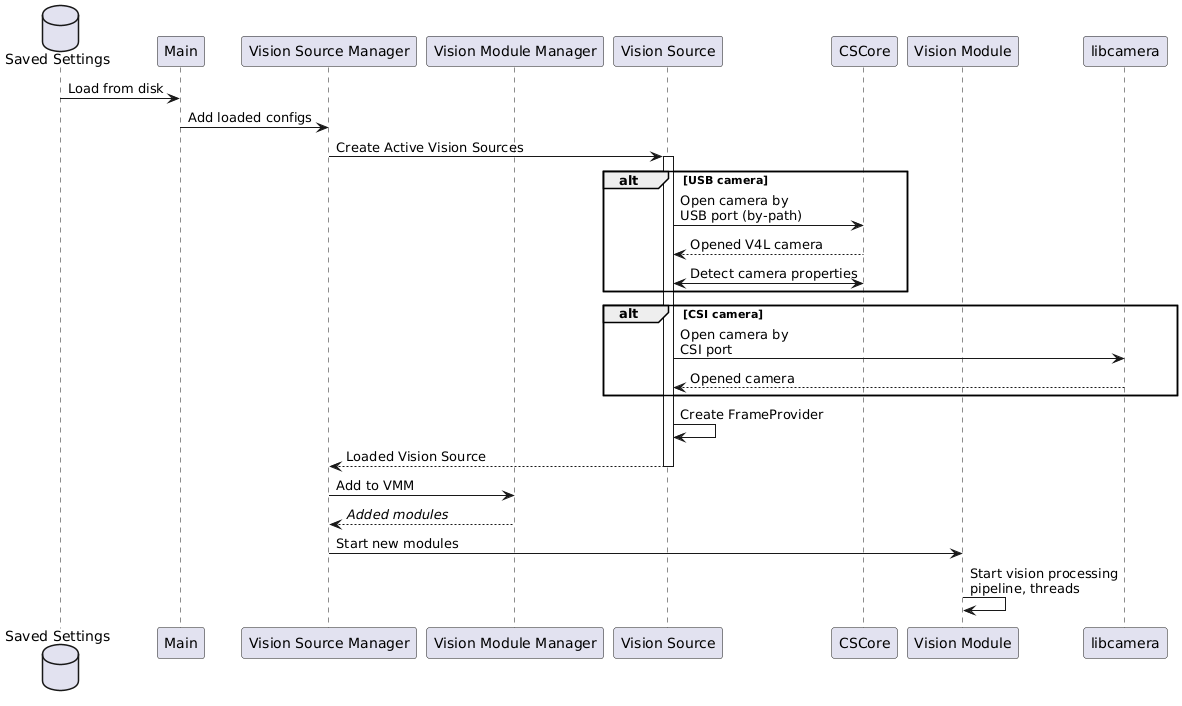
|
||||
|
||||
## UI Workflow
|
||||
|
||||
A [background thread](https://javadocs.photonvision.org/org/photonvision/common/util/TimedTaskManager.html) will periodically query CSCore and Libcamera for what cameras we currently see connected. This list is provided to the web UI for display.
|
||||
|
||||
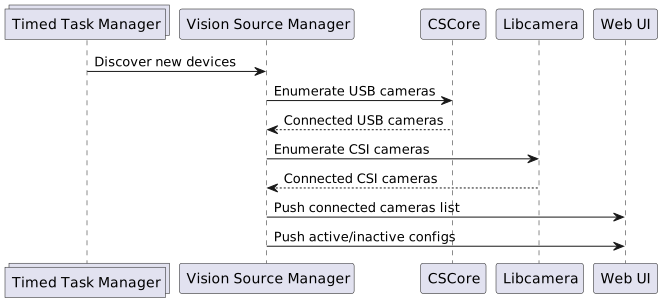
|
||||
|
||||

|
||||
|
||||
This UI allows users to "Activate" a camera that's never been seen before, or activate a CameraConfiguration we've seen before but was disabled. Allowing camera configurations to be saved but not loaded by default lets us support temporarily disabling/unplugging a camera without flooding log files.
|
||||
|
||||
Since our backend logic intentionally does not protect users from plugging camera B into the port that camera A was active on, the UI shall show a warning but vision processing will (attempt to) continue like normal.
|
||||
|
||||
### Activate New Camera
|
||||
|
||||
When a new camera (ie, one we can't match by-path to a deserialized CameraConfiguration) is activated, we'll create a spin up a new Vision Module for it
|
||||
|
||||
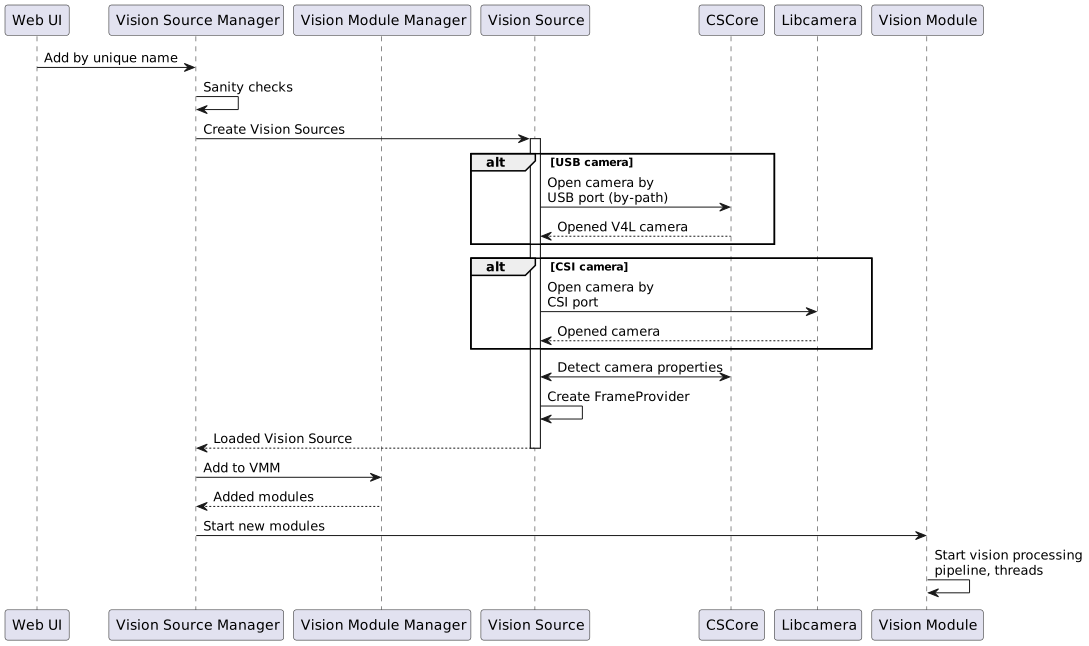
|
||||
|
||||
### Deactivate Camera
|
||||
|
||||
Deactivating a camera will release the native resources it owns, and return the CameraConfiguration to the pool of currently disabled cameras we can re-enable later.
|
||||
|
||||
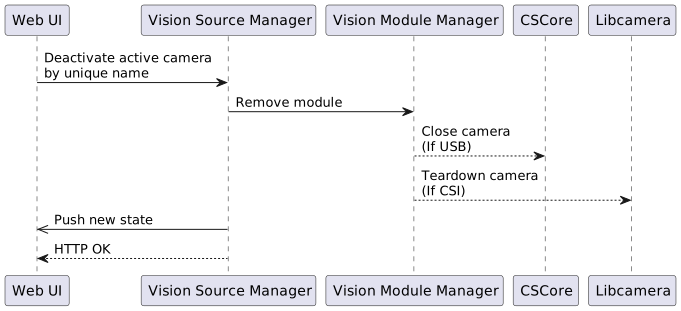
|
||||
|
||||
### Reactivate a CameraConfig
|
||||
|
||||
When a new camera (ie, one we can't match by-path to a deserialized CameraConfiguration) is activated, we'll create and spin up a new Vision Module for it.
|
||||
|
||||
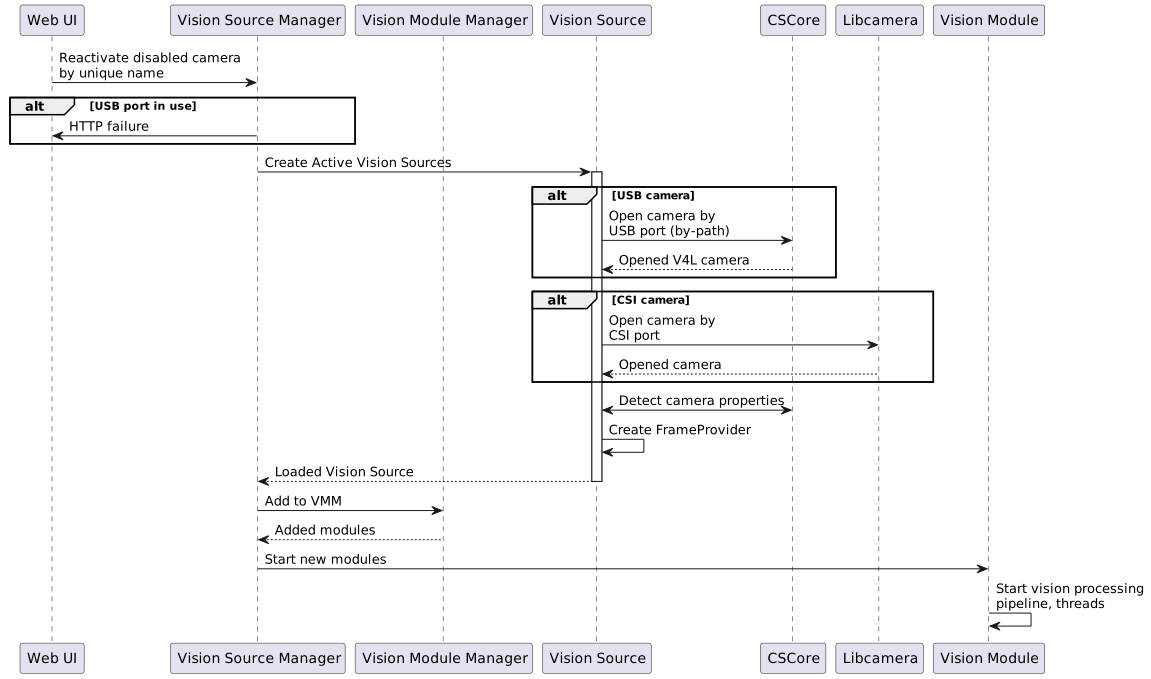
|
||||
|
||||
# Camera Matching Requirements
|
||||
|
||||
## Definitions
|
||||
- VALID USB PATH: a path in the form `/dev/v4l/by-path/[UUID]`
|
||||
- VIDEO DEVICE PATH: a CSCore-provided identifier derived from the V4L path `/dev/video[N]` on Linux, or an opaque string on Windows
|
||||
- UNIQUE NAME: an identifier that is unique within the set of all deserialized CameraConfigurations and unmatched USB cameras
|
||||
- I don't love this, it means that a USB camera matched to a VisionModule will share a UNIQUE NAME, right?
|
||||
- DESERIALIZED CAMERA CONFIGURATIONS: The set of camera configurations loaded from disk and provided to the VisionSourceManager. This configuration data structure includes the UNIQUE NAME
|
||||
- CURRENTLY ACTIVE CAMERAS: The set of VisionModules currently active and processing vision data, and associated metadata
|
||||
|
||||
## Startup:
|
||||
|
||||
- GIVEN An empty set of deserialized Camera Configurations
|
||||
<br>WHEN PhotonVision starts
|
||||
<br>THEN no VisionModules will be started
|
||||
|
||||
- GIVEN A valid set of deserialized Camera Configurations
|
||||
<br>WHEN PhotonVision starts
|
||||
<br>THEN VisionModules will be started FOR EACH un-DISABLED config
|
||||
|
||||
- GIVEN A valid set of deserialized Camera Configurations
|
||||
<br>WHEN PhotonVision starts
|
||||
<br>THEN VisionModules will NOT be started FOR EACH DISABLED config
|
||||
|
||||
- GIVEN A CameraConfiguration with a VALID USB PATH
|
||||
<br>WHEN a VisionModule is created
|
||||
<br>THEN The VisionModule shall open the camera using the USB path
|
||||
|
||||
- GIVEN A CameraConfiguration without a valid USB path
|
||||
<br>WHEN a VisionModule is created
|
||||
<br>THEN The VisionModule shall open the camera using the VIDEO DEVICE PATH
|
||||
|
||||
## Camera (re)enumeration:
|
||||
|
||||
- GIVEN a NEW USB CAMERA is available for enumeration
|
||||
<br>WHEN a USB camera is discovered by VisionSourceManager
|
||||
<br>AND the USB camera's VIDEO DEVICE PATH is not in the set of DESERIALIZED CAMERA CONFIGURATIONS
|
||||
<br>THEN a UNIQUE NAME will be assigned to the camera info
|
||||
|
||||
- GIVEN a NEW USB CAMERA is available for enumeration
|
||||
<br>WHEN a USB camera is discovered by VisionSourceManager
|
||||
<br>AND the USB camera's VIDEO DEVICE PATH is in the set of DESERIALIZED CAMERA CONFIGURATIONS
|
||||
<br>THEN a UNIQUE NAME equal to the matching DESERIALIZED CAMERA CONFIGURATION will be assigned to the camera info
|
||||
- This is a weird case. How -should- we handle this? see above
|
||||
|
||||
## Creating from a new camera
|
||||
|
||||
- Given: A UNIQUE NAME from a NEW USB CAMERA
|
||||
<br>WHEN I request a new VisionModule is created for this NEW USB CAMERA
|
||||
<br>AND the camera has a VALID USB PATH
|
||||
<br>AND the camera's VALID USB PATH is not in use by any CURRENTLY ACTIVE CAMERAS
|
||||
<br>THEN a NEW VisionModule will be started for the NEW USB CAMERA using the VALID USB PATH
|
||||
|
||||
- Given: A UNIQUE NAME from a NEW USB CAMERA
|
||||
<br>WHEN I request a new VisionModule is created for this NEW USB CAMERA
|
||||
<br>AND the camera does not have a VALID USB PATH
|
||||
<br>AND the camera's VIDEO DEVICE PATH is not in use by any CURRENTLY ACTIVE CAMERAS
|
||||
<br>THEN a NEW VisionModule will be started for the NEW USB CAMERA using the VIDEO DEVICE PATH
|
||||
|
||||
## Deactivate
|
||||
|
||||
- Given: A UNIQUE NAME from a CURRENTLY ACTIVE CAMERA
|
||||
<br>WHEN I request the VisionModule be DEACTIVATED
|
||||
<br>THEN the VisionModule will be stopped for the given CURRENTLY ACTIVE CAMERA
|
||||
<br>AND the CameraConfiguration DISABLED flag will be set to TRUE
|
||||
|
||||
## Reactivate
|
||||
|
||||
- Given: A UNIQUE NAME from a DESERIALIZED CAMERA CONFIGURATIONS
|
||||
<br>WHEN I request the VisionModule be ACTIVATED
|
||||
<br>AND the CameraConfiguration's DISABLED flag is TRUE
|
||||
<br>THEN a VisionModule will be created and started for the camera
|
||||
@@ -1,136 +0,0 @@
|
||||
# Latency Characterization
|
||||
|
||||
|
||||
## A primer on time
|
||||
|
||||
Especially starting around 2022 with AprilTags making localization easier, providing a way to know when a camera image was captured at became more important for localization.
|
||||
Since the [creation of USBFrameProvider](https://github.com/PhotonVision/photonvision/commit/f92bf670ded52b59a00352a4a49c277f01bae305), we used the time [provided by CSCore](https://github.wpilib.org/allwpilib/docs/release/java/edu/wpi/first/cscore/CvSink.html#grabFrame(org.opencv.core.Mat)) to tell when a camera image was captured at, but just keeping track of "CSCore told us frame N was captured 104.21s after the Raspberry Pi turned on" isn't very helpful. We can decompose this into asking:
|
||||
|
||||
- At what time was a particular image captured at, in the coprocessor's timebase?
|
||||
- How do I convert a time in a coprocessor's timebase into the RoboRIO's timebase, so I can integrate the measurement with my other sensor measurements (like encoders)?
|
||||
|
||||
The first one seems easy - CSCore tells us the time, so just keep track of that? Should be easy. For the second, translating this time, as measured by the coprocessor's clock, into a timebase also used by user code on the RoboRIO, is actually a [fairly hard problem](time-sync.md) that involved reinventing [PTP](https://en.wikipedia.org/wiki/PTP).
|
||||
|
||||
And on latency vs timestamps - PhotonVision has exposed a magic "latency" number since forever, but latency (as in, the time from image capture to acting on data) can be useful for benchmarking code, but robots actually want to answer "what time was this image from, relative to "?
|
||||
|
||||
|
||||
## CSCore's Frame Time
|
||||
|
||||
WPILib's CSCore is a platform-agnostic wrapper around Windows, Linux, and MacOS camera APIs. On Linux, CSCore uses [Video4Linux](https://en.wikipedia.org/wiki/Video4Linux) to access USB Video Class (UVC) devices like webcams, as well as CSI cameras on some platforms. At a high level, CSCore's [Linux USB Camera driver](https://github.com/wpilibsuite/allwpilib/blob/17a03514bad6de195639634b3d57d5ac411d601e/cscore/src/main/native/linux/UsbCameraImpl.cpp) works by:
|
||||
|
||||
- Opening a camera with `open`
|
||||
- Creating and `mmap`ing a handful of buffers V4L will fill with frame data into program memory
|
||||
- Asking V4L to start streaming
|
||||
- While the camera is running:
|
||||
- Wait for new frames
|
||||
- Dequeue one buffer
|
||||
- Call `SourceImpl::PutFrame`, which will copy the image out and convert as needed
|
||||
- Return the buffer to V4L to fill again
|
||||
|
||||
Prior to https://github.com/wpilibsuite/allwpilib/pull/7609, CSCore used the [time it dequeued the buffer at](https://github.com/wpilibsuite/allwpilib/blob/17a03514bad6de195639634b3d57d5ac411d601e/cscore/src/main/native/linux/UsbCameraImpl.cpp#L559) as the image capture time. But this doesn't account for exposure time or latency introduced by the camera + USB stack + Linux itself.
|
||||
|
||||
V4L does expose (with some [very heavy caveats](https://github.com/torvalds/linux/blob/fc033cf25e612e840e545f8d5ad2edd6ba613ed5/drivers/media/usb/uvc/uvc_video.c#L600) for some troublesome cameras) its best guess at the time an image was captured at via [buffer flags](https://www.kernel.org/doc/html/v4.9/media/uapi/v4l/buffer.html#buffer-flags). In my testing, all my cameras were able to provide timestamps with both these flags set:
|
||||
- `V4L2_BUF_FLAG_TIMESTAMP_MONOTONIC`: The buffer timestamp has been taken from the CLOCK_MONOTONIC clock [...] accessible via `clock_gettime()`.
|
||||
- `V4L2_BUF_FLAG_TSTAMP_SRC_SOE`: Start Of Exposure. The buffer timestamp has been taken when the exposure of the frame has begun.
|
||||
|
||||
I'm sure that we'll find a camera that doesn't play nice, because we can't have nice things :). But until then, using this timestamp gets us a free accuracy bump.
|
||||
|
||||
Other things to note: This gets us an estimate at when the camera *started* collecting photons. The camera's sensor will remain collecting light for up to the total integration time, plus readout time for rolling shutter cameras.
|
||||
|
||||
## Latency Testing
|
||||
|
||||
Here, I've got a RoboRIO with an LED, an Orange Pi 5, and a network switch on a test bench. The LED is assumed to turn on basically instantly once we apply current, and based on DMA testing, the total time to switch a digital output on is on the order of 10uS. The RoboRIO is running a TimeSync Server, and the Orange Pi is running a TimeSync Client.
|
||||
|
||||
### Test Setup
|
||||
|
||||
<details>
|
||||
<summary>Show RoboRIO Test Code</summary>
|
||||
|
||||
```java
|
||||
package frc.robot;
|
||||
|
||||
import org.photonvision.PhotonCamera;
|
||||
|
||||
import edu.wpi.first.wpilibj.DigitalOutput;
|
||||
import edu.wpi.first.wpilibj.TimedRobot;
|
||||
import edu.wpi.first.wpilibj.Timer;
|
||||
import edu.wpi.first.wpilibj.smartdashboard.SmartDashboard;
|
||||
|
||||
public class Robot extends TimedRobot {
|
||||
PhotonCamera camera;
|
||||
DigitalOutput light;
|
||||
|
||||
@Override
|
||||
public void robotInit() {
|
||||
camera = new PhotonCamera("Arducam_OV9782_USB_Camera");
|
||||
|
||||
light = new DigitalOutput(0);
|
||||
light.set(false);
|
||||
}
|
||||
|
||||
@Override
|
||||
public void robotPeriodic() {
|
||||
super.robotPeriodic();
|
||||
|
||||
try {
|
||||
light.set(false);
|
||||
for (int i = 0; i < 50; i++) {
|
||||
Thread.sleep(20);
|
||||
camera.getAllUnreadResults();
|
||||
}
|
||||
|
||||
var t1 = Timer.getFPGATimestamp();
|
||||
light.set(true);
|
||||
var t2 = Timer.getFPGATimestamp();
|
||||
|
||||
|
||||
for (int i = 0; i < 100; i++) {
|
||||
for (var result : camera.getAllUnreadResults()) {
|
||||
if (result.hasTargets()) {
|
||||
var t3 = result.getTimestampSeconds();
|
||||
var t1p5 = (t1 + t2) / 2;
|
||||
var error = t3-t1p5;
|
||||
SmartDashboard.putNumber("blink_error_ms", error * 1000);
|
||||
return;
|
||||
}
|
||||
}
|
||||
|
||||
Thread.sleep(20);
|
||||
}
|
||||
} catch (InterruptedException e) {
|
||||
e.printStackTrace();
|
||||
}
|
||||
}
|
||||
}
|
||||
```
|
||||
</details>
|
||||
|
||||
I've decreased camera exposure as much as possible (so we know with reasonable confidence that the image was collected right at the start of the exposure time reported by V4L), but we only get back new images at 60fps. So we don't know when between frame N and N+1 the LED turned on - just that sometime between now and 1/60th of a second a go, the LED turned on.
|
||||
|
||||
The test coprocessor was an Orange Pi 5 running a PhotonVision 2025 (Ubuntu 24.04 based) image, with an ArduCam OV9782 at 1280x800, 60fps, MJPG running a reflective pipeline.
|
||||
|
||||
|
||||
### Test Results
|
||||
|
||||
The videos above show the difference between when the RoboRIO turned the LED on and when PhotonVision first seeing a camera frame with the LED on, what I've called error and plotted in yellow with units of seconds. This error decreases when I use the frame time reported by V4L from a mean delta of 26 ms to a mean delta of 11 ms (below the maximum temporal resolution of my camera).
|
||||
|
||||
Old CSCore:
|
||||
```{raw} html
|
||||
<video width="85%" controls>
|
||||
<source src="../../../_static/assets/latency-tests/ov9782_1280x720x60xMJPG_old.mp4" type="video/mp4">
|
||||
Your browser does not support the video tag.
|
||||
</video>
|
||||
```
|
||||
CSCore using V4L frame time:
|
||||
```{raw} html
|
||||
<video width="85%" controls>
|
||||
<source src="../../../_static/assets/latency-tests/ov9782_1280x720x60xMJPG_new.mp4" type="video/mp4">
|
||||
Your browser does not support the video tag.
|
||||
</video>
|
||||
```
|
||||
|
||||
With the camera capturing at 60fps, the time between successive frames is only ~16.7 ms, so I don't expect to be able to resolve anything smaller. Given sufficient time and with perfect latency compensation, and with more noise in the robot program to make sure we vary LED toggle times, I'd expect the error to converge to ~half the interval between frames - so being within this frame interval with CSCore updates is a very good sign.
|
||||
|
||||
### Future Work
|
||||
|
||||
This test also makes no effort to isolate error from time synchronization from error introduced by frame time measurement - we're just interested in overall error. Future work could investigate the latency contribution
|
||||

|
Before Width: | Height: | Size: 5.9 KiB After Width: | Height: | Size: 14 KiB |

|
Before Width: | Height: | Size: 166 KiB |
@@ -4,6 +4,4 @@
|
||||
:maxdepth: 1
|
||||
image-rotation
|
||||
time-sync
|
||||
camera-matching
|
||||
e2e-latency
|
||||
```
|
||||
|
||||
@@ -76,7 +76,7 @@ Communication between server and clients shall occur over the User Datagram Prot
|
||||
|
||||
## Message Format
|
||||
|
||||
The message format forgoes CRCs (as these are provided by the Ethernet physical layer) or packet delineation (as our packets are assumed be under the network MTU). **TSP Ping** and **TSP Pong** messages shall be encoded in a manor compatible with a WPILib packed struct with respect to byte alignment and endianness.
|
||||
The message format forgoes CRCs (as these are provided by the Ethernet physical layer) or packet delimination (as our packetsa are assumed be under the network MTU). **TSP Ping** and **TSP Pong** messages shall be encoded in a manor compatible with a WPILib packed struct with respect to byte alignment and endienness.
|
||||
|
||||
### TSP Ping
|
||||
|
||||
@@ -98,7 +98,7 @@ The message format forgoes CRCs (as these are provided by the Ethernet physical
|
||||
|
||||
## Optional Protocol Extensions
|
||||
|
||||
Clients may publish statistics to NetworkTables. If they do, they shall publish to a key that is globally unique per participant in the Time Synchronization network. If a client implements this, it shall provide the following publishers:
|
||||
Clients may publish statistics to NetworkTables. If they do, they shall publish to a key that is globally unique per participant in the Time Synronization network. If a client implements this, it shall provide the following publishers:
|
||||
|
||||
| Key | Type | Notes |
|
||||
| ------ | ------ | ---- |
|
||||
|
||||
@@ -3,7 +3,6 @@
|
||||
```{toctree}
|
||||
building-photon
|
||||
building-docs
|
||||
linting
|
||||
developer-docs/index
|
||||
design-descriptions/index
|
||||
```
|
||||
|
||||
@@ -1,43 +0,0 @@
|
||||
# Linting the PhotonVision Codebase
|
||||
|
||||
## Versions
|
||||
|
||||
:::{note}
|
||||
If you work on other projects that use different versions of the same linters as PhotonVision, you may find it beneficial to use a [venv](https://docs.python.org/3/library/venv.html) instead of installing the linters globally. This will allow you to have different versions of the same linter installed for different projects.
|
||||
:::
|
||||
|
||||
The correct versions for each linter can be found under the linting workflow located [here](https://github.com/PhotonVision/photonvision/tree/main/.github/workflows). For *doc8*, the version can be found in `docs/requirements.txt`. If you've linted, and are still unable to pass CI, please check the versions of your linters.
|
||||
|
||||
## Frontend
|
||||
|
||||
### Linting the frontend
|
||||
|
||||
In order to lint the frontend, run `pnpm -C photon-client lint && pnpm -C photon-client format`. This should be done from the base level of the repo.
|
||||
|
||||
## Backend
|
||||
|
||||
### wpiformat installation
|
||||
|
||||
To lint the backend, PhotonVision uses *wpiformat* and *spotless*. Spotless is included with gradle, which means installation is not needed. To install wpiformat, run `pipx install wpiformat`. To install a specific version, run `pipx install wpiformat==<version>`.
|
||||
|
||||
### Linting the backend
|
||||
|
||||
To lint, run `./gradlew spotlessApply` and `wpiformat`.
|
||||
|
||||
## Documentation
|
||||
|
||||
### doc8 installation
|
||||
|
||||
To install *doc8*, the python tool we use to lint our documentation, run `pipx install doc8`. To install a specific version, run `pipx install doc8==<version>`.
|
||||
|
||||
### Linting the documentation
|
||||
|
||||
To lint the documentation, run `doc8 docs` from the root level of the docs.
|
||||
|
||||
## Alias
|
||||
|
||||
The following [alias](https://www.computerworld.com/article/1373210/how-to-use-aliases-in-linux-shell-commands.html) can be added to your shell config, which will allow you to lint the entirety of the PhotonVision project by running `pvLint`. The alias will work on Linux, macOS, Git Bash on Windows, and WSL.
|
||||
|
||||
```sh
|
||||
alias pvLint='wpiformat -v && ./gradlew spotlessApply && pnpm -C photon-client lint && pnpm -C photon-client format && doc8 docs'
|
||||
```
|
||||
@@ -2,7 +2,7 @@
|
||||
|
||||
## Description
|
||||
|
||||
PhotonVision is a free, fast, and easy-to-use vision processing solution for the _FIRST_ Robotics Competition. PhotonVision is designed to get vision working on your robot _quickly_, but with lower cost than other solutions.
|
||||
PhotonVision is a free, fast, and easy-to-use vision processing solution for the *FIRST*Robotics Competition. PhotonVision is designed to get vision working on your robot *quickly*, without the significant cost of other similar solutions.
|
||||
Using PhotonVision, teams can go from setting up a camera and coprocessor to detecting and tracking AprilTags and other targets by simply tuning sliders. With an easy to use interface, comprehensive documentation, and a feature rich vendor dependency, no experience is necessary to use PhotonVision. No matter your resources, using PhotonVision is easy compared to its alternatives.
|
||||
|
||||
## Advantages
|
||||
@@ -11,7 +11,7 @@ PhotonVision has a myriad of advantages over similar solutions, including:
|
||||
|
||||
### Affordable
|
||||
|
||||
PhotonVision offers a more affordable solution to vision, with costs being from your coprocessor(s) and camera(s). Teams may choose to run multiple cameras from one coprocessor. This makes it a great solution for teams with limited budgets.
|
||||
Compared to alternatives, PhotonVision is much cheaper to use (at the cost of your coprocessor and camera) compared to alternatives that cost \$400. This allows your team to save money while still being competitive.
|
||||
|
||||
### Easy to Use User Interface
|
||||
|
||||
@@ -19,15 +19,19 @@ The PhotonVision user interface is simple and modular, making things easier for
|
||||
|
||||
### PhotonLib Vendor Dependency
|
||||
|
||||
The PhotonLib vendor dependency allows you to easily get necessary target data (without having to work directly with NetworkTables) while also providing utility methods to get distance and position on the field. A serialization strategy is used to guarantees data coherency, which is helpful for latency compensation. This helps your team focus less on getting data and more on using it to do cool things.
|
||||
The PhotonLib vendor dependency allows you to easily get necessary target data (without having to work directly with NetworkTables) while also providing utility methods to get distance and position on the field. This helps your team focus less on getting data and more on using it to do cool things. This also has the benefit of having a structure that ensures all data is from the same timestamp, which is helpful for latency compensation.
|
||||
|
||||
### User Calibration
|
||||
|
||||
Using PhotonVision allows the user to calibrate for their specific camera, which will get you the best tracking results. This is extremely important as every camera (even if it is the same model) will have it's own quirks and user calibration allows for those to be accounted for.
|
||||
|
||||
### Low Latency, High FPS Processing
|
||||
### High FPS Processing
|
||||
|
||||
PhotonVision exposes specialized hardware on select coprocessors to maximize processing speed. This allows for lower-latency detection of targets to ensure you aren't losing out on any performance.
|
||||
Compared to alternative solutions, PhotonVision boasts higher frames per second which allows for a smoother video stream and detection of targets to ensure you aren't losing out on any performance.
|
||||
|
||||
### Low Latency
|
||||
|
||||
PhotonVision provides low latency processing to make sure you get vision measurements as fast as possible, which makes complex vision tasks easier. We guarantee that all measurements are sent from the same timestamp, making life easier for your programmers.
|
||||
|
||||
### Fully Open Source and Active Developer Community
|
||||
|
||||
|
||||

|
Before Width: | Height: | Size: 61 KiB |

|
Before Width: | Height: | Size: 194 KiB |

|
Before Width: | Height: | Size: 257 KiB |
@@ -1,27 +0,0 @@
|
||||
# Driver Mode
|
||||
|
||||
Driver Mode is a type of pipeline that doesn't run any vision processing, intended for viewing from a human.
|
||||
|
||||
## Enabling Driver Mode
|
||||
|
||||
To enable Driver Mode, toggle the switch at the top of the Dashboard page for a selected camera.
|
||||
|
||||
```{image} images/driver-mode-dashboard.png
|
||||
:align: center
|
||||
:alt: Driver Mode Toggle in the Dashboard Page
|
||||
```
|
||||
|
||||
Alternatively, visit the camera settings page and toggle the "Driver Mode" switch for a selected camera.
|
||||
|
||||
```{image} images/driver-mode-camera-settings.png
|
||||
:align: center
|
||||
:alt: Driver Mode Toggle in the Camera Settings Page
|
||||
```
|
||||
|
||||
## Hiding the Crosshair
|
||||
When Driver Mode is enabled, a green crosshair will be shown at the center of the camera stream. If you do not want to show the green crosshair at the center of the camera stream, toggle the "Crosshair" switch under the Input tab, as shown in the image below.
|
||||
|
||||
```{image} images/crosshair-switch.png
|
||||
:align: center
|
||||
:alt: Crosshair Switch
|
||||
```
|
||||